Step by step
How to add a countdown timer to a HubSpot email
Create the timer in flashtimer
Set the deadline and time zone, choose a layout and your brand colors, and write the message readers see once it ends. On Basic and up, describe the event in a sentence and the AI countdown timer generator drafts it. For workflows, pick Evergreen in the Timing picker.
Insert it into a draft in one click (Pro)
On Pro and up, connect HubSpot under Settings → Integrations in flashtimer, open Send to ESP in the timer editor and choose one of your draft marketing emails. flashtimer adds the timer to the draft, ready for you to move and style in HubSpot.
Or paste the snippet yourself (any plan)
On any plan, including Free, click Embed and use Copy HTML. Paste it wherever your HubSpot email accepts custom HTML, such as a custom HTML module or a coded template. Don't upload the GIF to HubSpot's file manager: that saves a frozen copy that never counts down.
Link the timer and set alt text
Wrap the <img> tag in a link to your offer or registration page and replace the default alt text with the deadline, like "Webinar starts Thursday at 2 pm ET". On Pro, a click-tracked flashtimer link counts clicks next to views.
Preview as a contact, test and send
In HubSpot's preview, view the email as a specific contact to check the token fills in, then send a test to Gmail and Outlook. The timer should show the time left right now. Then send, schedule or add the email to a workflow.
When a countdown timer earns its place in HubSpot email
HubSpot teams use email for deadlines that matter to sales: webinar start times, event registration closing, early-bird pricing, end-of-quarter offers and trial expiry. A live countdown turns that date into something a reader notices in a second, instead of a line in the third paragraph.
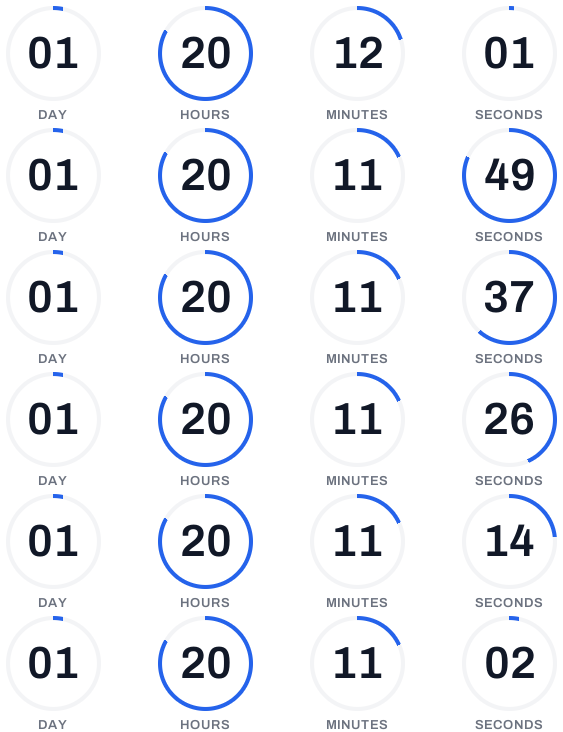
Because the GIF is drawn when the email is opened, it is always accurate. Someone who opens a webinar countdown email an hour before the start sees one hour left, not the three days that were left at send time. The same holds for a product launch countdown.
Adding a countdown timer in HubSpot's drag-and-drop editor
In HubSpot's drag-and-drop marketing email editor, an image module expects an image you upload or pick from the file manager, and HubSpot notes that text and rich text modules can't contain images. Neither keeps a link to an outside image that changes at every open, which is what a live timer needs.
That's why the most reliable route is flashtimer's one-click insertion on Pro, which writes the timer into your draft for you. Without it, paste the HTML snippet into a module that accepts custom HTML. Some teams have one in their account; a developer can create one for email in HubSpot's Design Manager. Coded email templates take the snippet as is.
HubSpot evergreen countdown timer with {{ contact.hs_object_id }}
An evergreen countdown timer gives each contact their own countdown, starting from their first open and running for the time you set, such as 72 hours. It's the right timer for nurture emails, trial follow-ups and anything a workflow sends on a different day for each person. Evergreen timers are on Basic and up.
flashtimer adds ?vid={{ contact.hs_object_id }} to the timer URL in the embed snippet. That token is HubSpot's internal record ID for the contact, not their email address, and flashtimer hashes it before storing it. Preview the email as a real contact to check the ID appears in the URL.
HubSpot workflow countdown timers and contact date properties
Workflows live under Automation → Workflows. To use a timer there, create the email as an automated marketing email with the timer in it, then add it to the workflow with a send marketing email action. Contacts enroll at different times, so an evergreen timer keeps every countdown honest.
When each contact already has their own deadline, such as a renewal date or a trial end in a contact property, use a dynamic timer (Pro and up). Put the property's token in the URL as ?end={{ contact.renewal_date }}. HubSpot prints date-time properties like 2026-10-05 14:00:00 in your HubSpot account's time zone, so set the timer's time zone to match. A date property that prints 00:00:00 ends at the start of that day. See personalized countdown timers.
What contacts see in Outlook, Gmail and Apple Mail
Many HubSpot audiences are B2B, so classic Outlook desktop on Windows matters. It shows only the first frame of a GIF. With flashtimer, that first frame is the correct time left at the moment of opening; it doesn't tick, but it isn't wrong. Always write the deadline in text too. Gmail, Apple Mail, Yahoo, and Outlook on the web, Mac and mobile show the full countdown.
Apple Mail Privacy Protection loads images before a reader opens the email. By default those loads get the live countdown as it stood then; on Pro and up, Apple Mail options can show them a message, your fallback image or nothing instead, so cached opens never show a stale time. Gmail's image proxy is handled with no-cache headers, so a reopen shows the current time.
After the deadline, and keeping the brand consistent
Once the countdown ends, the timer shows your expiry message, or your own fallback image on Basic and up, such as "Watch the recording" after a webinar. Contacts who open a workflow email late never see a countdown to something that has passed.
Match your HubSpot email template with brand colors, every layout, a transparent background, uploaded fonts on paid plans and labels in multiple languages. See custom branded countdown timers, the countdown timer API for creating timers from code, and pricing.
Questions
Answered before you ask.
Keep reading
- Webinars & eventsWebinar countdown timer email: from invite to “we're live” to replayAdd a webinar countdown timer email to invites and reminders that counts to start time in every time zone, then shows your replay link. Start free today.
- Evergreen timersEvergreen countdown timer for email: a personal deadline for every readerGive every reader their own deadline with an evergreen countdown timer email: starts on open or on send, built for flows. Set up in minutes. Start free.
- Dynamic timersPersonalized countdown timer email: every reader counts to their own dateSend a personalized countdown timer email where each reader counts down to their own date: trial end, renewal or appointment, from a merge field. Try it free.
- ActiveCampaign integrationActiveCampaign countdown timer for campaigns and automationsAdd a live ActiveCampaign countdown timer to campaigns and automations, with a countdown per contact via %EMAIL% and dates from custom fields. Start free.
- DevelopersCountdown timer API & MCP serverCreate and embed timers from code, Claude, ChatGPT, Gemini or Grok.