Step by step
How to set up a personalized countdown timer
Store the date on each contact
Make sure your email platform has the date as a contact field, for example trial_end, renewal_date or appointment_at. Most platforms fill these from your app, store or CRM sync.
Choose Ends on their date
In the editor open Timing, pick Evergreen, and under Countdown choose Ends on their date. This is the dynamic timer, included from the Pro plan.
Set the time zone and default time
Pick the time zone used to read dates that don't carry one, and the time a date-only value ends at (23:59 unless you change it). A field holding 2026-11-30 then ends at 23:59 on November 30 in that zone.
Build the image URL in the Embed dialog
Open Embed, pick your email platform and type the name of your date field. flashtimer writes the URL with your platform's merge tag in ?end=, for example ?end={{ person.trial_end }} for Klaviyo or ?end=*|TRIAL_END|* for Mailchimp. On a platform whose tag syntax it doesn't know, it leaves YOUR_MERGE_TAG in the URL for you to replace.
Test a real value
Paste a value exactly as your platform prints it into Test a date. The dialog shows when that recipient's countdown would end, and warns you if it can't read the value or if it lands on a midnight you probably didn't mean.
What a dynamic countdown timer does
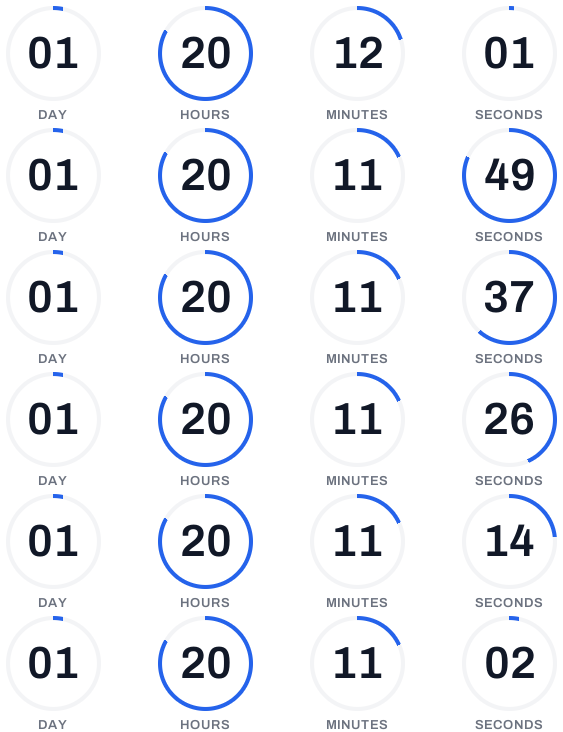
A fixed timer counts every reader to the same moment. An evergreen timer starts a fresh clock at each reader's first open. A dynamic timer does neither: each reader counts down to a date your own data already holds about them. Your platform swaps the merge tag for that person's date when it sends, so Ana sees 2 days until her trial ends and Ben sees 11 days until his renewal, from the same timer.
Nothing about the recipient is stored by flashtimer to make this work. The date travels in the image URL, is read on each open and is left out of flashtimer's logs, which also means the countdown is right whenever the email is opened, including a week later.
Personalized countdown examples
Any date you keep per contact can drive a countdown. These are the ones that tend to matter most:
- Trial ending: "Your trial ends in…" from trial_end, in the last three emails of an onboarding flow.
- Subscription renewal: a countdown to renewal_date in a reminder that lets people update a card or change plan in time.
- Appointment or booking: time until a consultation, a fitting or a class from appointment_at, in a reminder sequence.
- Loyalty points expiry: time until a member's points lapse, from points_expire_on, in a monthly statement email.
- Personal offer: a code that is valid until a date you assigned per customer, such as a birthday discount valid to the end of the month.
Date formats the ?end= parameter accepts
Email platforms print dates in different ways, so flashtimer reads all the common ones. A value without a time zone is read in the zone you set on the timer.
If the value is missing or already past, that reader sees the timer's expired message; if it can't be read or is more than ten years from now in either direction, a neutral “currently unavailable” image. Never a countdown to the wrong date. The same formats are listed in the developer docs.
- A date only: 2026-10-05, ending at your default time
- A date and time: 2026-10-05T18:00 or 2026-10-05 18:00:30
- ISO 8601 with a zone, T or a space, any case: 2026-10-05T18:00:00+03:00, 2026-10-05 18:00:00 +0300, 2026-10-05t15:00:00z (offsets −12:00 to +14:00)
- A date and time followed by UTC or GMT, as Liquid prints UTC times
- Unix time in seconds (10 digits) or milliseconds (13 digits)
- A slash date such as 10/25/2026 or 25/10/2026, when the day can't be mistaken for the month; add &endfmt=mdy or &endfmt=dmy to the URL to read every slash date month-first or day-first
Merge tags for your email platform
The Embed dialog builds the date merge tag for platforms whose own documentation confirms the syntax: Klaviyo, Mailchimp, HubSpot, ActiveCampaign, Brevo, Omnisend, Drip, Kit, Customer.io, Braze, Iterable, MailerLite, Campaign Monitor and Mailjet. For others it shows the URL with a placeholder and tells you what to replace. For example, a field called renewal_date becomes {{ contact.renewal_date }} in HubSpot and {{ subscriber.renewal_date }} in Drip.
On Pro you can send the timer straight into a draft campaign. flashtimer won't push a dynamic timer into a campaign until its date field has a merge tag, so a draft never goes out with a URL that would show every reader the expired message.
Limits worth knowing before you send
Watch for midnight. Some platforms print a date field as midnight, or store it as midnight UTC, which ends the countdown at the start of the day rather than the end. The Test a date box warns you when that happens; switching the field to a plain date lets your default time apply.
A dynamic timer can't be a variant in an A/B test, and a timer managed by a store promotion (Shopify, WooCommerce or another connected store) can't switch to dynamic. Apple Mail Privacy Protection prefetches still see the right deadline, because it comes from the URL rather than from the moment of opening. Classic Outlook on Windows shows the first frame, so say the date in text as well: "Your trial ends on November 30".
Questions
Answered before you ask.
Keep reading
- Evergreen timersEvergreen countdown timer for email: a personal deadline for every readerGive every reader their own deadline with an evergreen countdown timer email: starts on open or on send, built for flows. Set up in minutes. Start free.
- Klaviyo integrationKlaviyo countdown timer for campaigns and flowsAdd a live Klaviyo countdown timer to campaigns and flows, with evergreen deadlines per subscriber via {{ person.KlaviyoID }}. Set it up in minutes. Start free.
- HubSpot integrationHubSpot countdown timer for marketing emails and workflowsAdd a live HubSpot countdown timer to marketing emails and workflows, with per-contact deadlines via {{ contact.hs_object_id }}. Set it up today, free.
- DevelopersCountdown timer API & MCP serverCreate and embed timers from code, Claude, ChatGPT, Gemini or Grok.
- PricingSimple pricing for email countdown timersStart free with 20,000 views a month. Upgrade as you grow.