
Step by step
How to set up an evergreen countdown timer
Create the timer and choose Evergreen
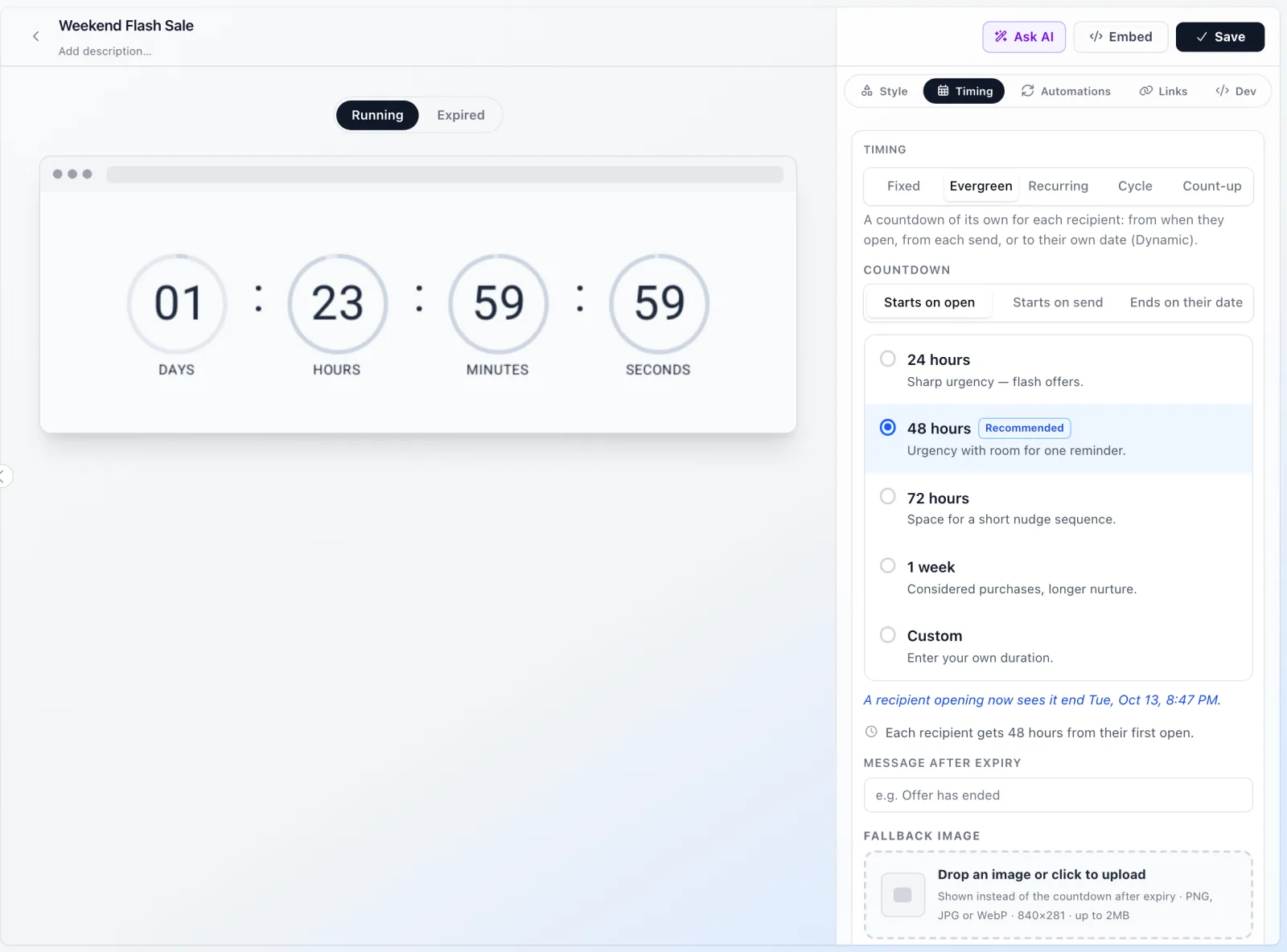
In the editor, open Timing and pick Evergreen. Under Countdown, choose Starts on open (each reader's clock starts at their first open) or Starts on send (everyone in one send shares a clock that starts at the send). Evergreen timers are included from the Basic plan.
Set the duration
Enter how long each countdown runs, in minutes, hours, days or weeks: 48 hours for a cart reminder, 7 days for a welcome discount. Any amount up to 999 of a unit works. Then style it like any other timer and write the message readers see once their time is up.
Copy the embed for your email platform
Open Embed and pick your email platform. For a starts-on-open timer the image URL already ends in ?vid= plus that platform's per-recipient merge tag, for example {{ person.KlaviyoID }} in Klaviyo or *|UNIQID|* in Mailchimp, so each reader is told apart. If the platform has no such tag, the dialog says so, and its readers share one countdown.
Starts on send: create a send link right before you send
For a starts-on-send timer, click Create send link in the Embed dialog just before the campaign goes out and paste that URL as the image. The deadline is signed into the link, so nobody can edit it to buy more time.
Test with a fresh address
Send a test to an address that has never opened this timer. Your own address remembers its first open, so a second test from it continues the first countdown instead of starting a new one (more on that below).
How an evergreen email timer works
A flashtimer timer is an animated GIF served from a URL and drawn at the moment the email is opened. For a fixed timer every reader counts down to the same date. For an evergreen countdown timer the end date belongs to the reader: when the image is requested, flashtimer looks up the first time that reader opened it, adds your duration and draws the time left.
Readers are told apart by the ?vid= value your email platform fills in with its merge tag. flashtimer hashes that value before storing it, so what sits on our side is a fingerprint of the ID, not the email address itself. The first open is remembered until a year after that reader's countdown ends, so a reader who comes back to the email a week later sees exactly the time they have left, and one who comes back months later sees the offer as ended, not a fresh clock.
When a reader's time runs out they see your expiry message, or your own fallback image (Basic and up), never a countdown stuck at zero for a deal that has quietly restarted.
Starts on open vs starts on send
Starts on open is the classic evergreen timer: each person's 48 hours begin at their own first open. It suits anything triggered by the reader, because the deadline is about their attention, not your calendar.
Starts on send gives everyone in one send the same deadline, counted from the send. Someone who opens two days late sees two days less. Use it for a 72-hour offer to a segment where you want the deadline tied to the campaign, not to the open. Because an image request can't know when its email was sent, the deadline travels in a signed send link you create from the Embed dialog, the REST API or the MCP server.
- Starts on open: one image URL works for every send and every flow, forever.
- Starts on send: create one send link per send. Pasting the same link into a flow freezes its deadline, so automated flows should mint a link per send through the API.
- A starts-on-open timer can be a variant in an A/B test; a starts-on-send timer can't, because its link is signed for one timer.
Evergreen countdown timers in automated flows
Flows are where evergreen timers earn their keep. A welcome series, a browse or abandoned cart sequence, a post-trial win-back: each reader enters on a different day, so a fixed date would be wrong for almost all of them. A starts-on-open timer with one URL is right for every one of them, because the clock starts when they read it.
Good pairings: a 7-day welcome discount countdown, a 48-hour cart reminder, a 24-hour last-chance email at the end of a sequence. Keep the duration honest. If the code really works for 7 days, say 7 days, and let the timer end. A countdown that resets every time someone opens teaches readers to ignore it.
In Klaviyo flows and Mailchimp customer journeys the merge tags flashtimer uses are opaque IDs ({{ person.KlaviyoID }} and *|UNIQID|*). Most other platforms use the subscriber's email address, which flashtimer hashes before storage.
Why does my evergreen timer show zero when I test it twice?
Because it is working. The first open is remembered per recipient ID. When you send yourself a test with a 1-hour timer, open it, and send another test the next day, flashtimer recognizes your ID and shows your original countdown, which has already ended. Real recipients each get their own clock.
To test again, use an address that has never opened this timer, or duplicate the timer for testing. The editor and Embed dialog previews always show a fresh countdown and never start anyone's clock, so you can check the design as often as you like.
One case is worth checking before a big send: if the merge tag is missing or your platform doesn't fill it in, every open without an ID shares one countdown, started by the first such open. The Embed dialog adds the tag for platforms that have one, so copy the URL from there rather than typing it. A few platforms, such as Braze, AWeber and Amazon SES, have no per-recipient merge tag flashtimer can rely on; the dialog says so, and readers there share one countdown.
Apple Mail, Gmail and Outlook with evergreen timers
Apple Mail Privacy Protection fetches images when the email is delivered, not when it is read. By default those fetches get the live countdown, so Apple's delivery-time fetch starts the reader's clock. On Pro and up you can set Apple Mail options to show those fetches a message, your fallback image or nothing instead. Under Mail Privacy Protection every fetch comes from Apple, on later opens too, so Apple Mail readers then see that substitute each time, and their countdown never starts.
Gmail loads images through its proxy, and flashtimer serves timers with no-cache headers, so a reader who reopens sees their current time left. Classic Outlook on Windows shows the first frame of a GIF: the right time at the moment of opening, just not ticking. Put the offer's terms in text next to the timer, such as "Your 15% code works for 48 hours".
Questions
Answered before you ask.
Keep reading
- Dynamic timersPersonalized countdown timer email: every reader counts to their own dateSend a personalized countdown timer email where each reader counts down to their own date: trial end, renewal or appointment, from a merge field. Try it free.
- Recurring timersRecurring countdown timer that resets on your schedule, foreverA recurring countdown timer that resets daily, weekly or monthly in your time zone, DST included. One URL that never expires. Try it free with flashtimer.
- Abandoned cart emailsThe abandoned cart email countdown timer that starts when each shopper opensGive every shopper their own abandoned cart email countdown timer that starts on first open. Works in Klaviyo, Shopify and any ESP. Start free today.
- Welcome offersWelcome email discount countdown timer: a real deadline for every new subscriberAdd a welcome email discount countdown timer that gives each new subscriber their own 48–72 hour window, starting on first open. Set it up free today.
- Klaviyo integrationKlaviyo countdown timer for campaigns and flowsAdd a live Klaviyo countdown timer to campaigns and flows, with evergreen deadlines per subscriber via {{ person.KlaviyoID }}. Set it up in minutes. Start free.