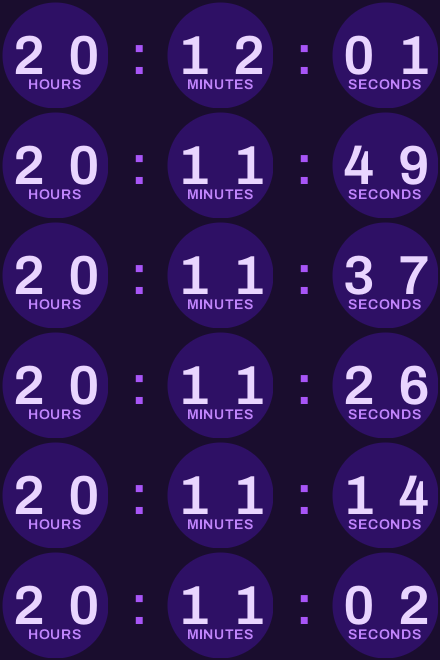
Step by step
Set up a welcome discount countdown
Create an evergreen timer that starts on open
In the editor, open Timing, choose Evergreen and Starts on open, and set the window your welcome code really lasts, for example 72 hours. Each subscriber's countdown begins at their first open and keeps running from there. Evergreen timers are on Basic and up.
Style it like the rest of your welcome email
The welcome email is a first impression, so the timer should look like your brand, not a banner ad. Pick a layout, apply your brand kit colors, and on paid plans upload your brand font. Set labels to “auto” if you have subscribers in several countries.
Write the expiry message or upload a fallback
When a subscriber's window closes, their timer shows your expiry message, or on Basic and up your own fallback image. Make it useful rather than a dead end: “Your welcome code has expired, but our bestsellers are still here.”
Paste the snippet into your welcome flow
Copy the embed snippet into an HTML block in the welcome emails that mention the code. Where your platform has a per-recipient merge tag, such as {{ person.KlaviyoID }} in Klaviyo or *|UNIQID|* in Mailchimp, the snippet already includes it, so each subscriber gets their own clock. A few platforms, such as Braze, AWeber and Amazon SES, have none: the Embed dialog says so, and there every subscriber shares one countdown. Use the same timer in every email of the series.
Test with a fresh signup
Sign up with a new test address, open the first email, and note the time left. Open the second email later and check it shows less time, not a fresh 72 hours. Check that your discount code stops working when the timer hits zero.
How long a welcome discount should last
Most stores give new subscribers 48 to 72 hours, and some up to 7 days. Shorter windows (24–48 hours) suit low-priced products people buy on impulse. Longer windows (72 hours to a week) suit considered purchases, where a new subscriber wants to read reviews or compare before their first order.
Pick the window from your own data if you have it: look at how long first-time buyers usually take between signing up and ordering, and set the window a little beyond that. Whatever you choose, the code, the timer and the text in your email must all say the same thing.
A welcome series with a countdown timer
A three-email welcome series is a common starting point. All three embed the same evergreen timer, so the time left carries over from email to email:
- Email 1, immediately after signup. The code, what it's worth, and the timer under it. Subject: “Welcome! Here's 15% off your first order”. Preheader: “Your code is good for 72 hours.”
- Email 2, about 24 hours later. Your story, bestsellers or reviews, with the code and timer lower down. Subject: “Our most-loved pieces (your 15% is still waiting)”.
- Email 3, about 12 hours before the window closes. Short reminder, timer at the top. Subject: “Your welcome code expires tonight”. Send it only to subscribers who haven't ordered.
Two ways to give every subscriber their own deadline
Starts on open (Basic and up). The evergreen timer starts at each subscriber's first open of the email. It needs nothing from your platform except a per-recipient merge tag, which flashtimer adds to the snippet on the platforms that have one. The value is hashed before it's stored. Best when the code's validity starts when they first see it. More on evergreen countdown timers.
Ends on their date (Pro and up). If your platform already stores a date on each subscriber, such as the expiry of their unique welcome code or their signup date plus seven days, a dynamic timer counts to that date. The image link carries it as ?end= followed by your platform's merge tag for that field. Best when the code's real expiry is already in your data. See personalized countdown timers.
Keep the welcome offer countdown honest
The welcome email sets the tone for every email after it. If the timer says 72 hours but the code still works a month later, a new subscriber learns on day four that your deadlines don't mean anything, and every future sale countdown loses its pull. Make the code expire when the timer does.
If your platform generates unique codes per subscriber, set their expiry to the same window. If you use one shared code with no expiry, don't add a timer; write “Use WELCOME15 on your first order” and let the offer stand on its own. We explain why in the psychology of urgency in email.
Welcome flow timers in Klaviyo, Mailchimp and other platforms
Klaviyo. Open your Welcome Series flow, add an HTML block to each email that mentions the code, and paste the snippet. It uses {{ person.KlaviyoID }}. Step-by-step in the Klaviyo countdown timer guide.
Mailchimp. In your welcome automation, add a code block and paste the snippet, which uses *|UNIQID|*. See the Mailchimp countdown timer setup.
Any other platform. Omnisend, Brevo, Kit, ActiveCampaign, MailerLite and the other platforms with a per-recipient merge tag each get a snippet that includes it. On one without, such as Braze, every subscriber shares one countdown. The timer is an image, so it renders in Gmail, Apple Mail, Yahoo and Outlook on the web, Mac and mobile. Classic Outlook for Windows (2007–2019, and newer versions with Windows animations turned off) shows only the first frame, which is why the expiry belongs in your text too.
Questions
Answered before you ask.
Keep reading
- ExampleWelcome email examples: a first-order offer with a personal timerA welcome email for an artisan bakery, with a first-order code that gives every new subscriber their own 48 hours. See the copy, layout and timer settings.
- Evergreen timersEvergreen countdown timer for email: a personal deadline for every readerGive every reader their own deadline with an evergreen countdown timer email: starts on open or on send, built for flows. Set up in minutes. Start free.
- Dynamic timersPersonalized countdown timer email: every reader counts to their own dateSend a personalized countdown timer email where each reader counts down to their own date: trial end, renewal or appointment, from a merge field. Try it free.
- Abandoned cart emailsThe abandoned cart email countdown timer that starts when each shopper opensGive every shopper their own abandoned cart email countdown timer that starts on first open. Works in Klaviyo, Shopify and any ESP. Start free today.
- Klaviyo integrationKlaviyo countdown timer for campaigns and flowsAdd a live Klaviyo countdown timer to campaigns and flows, with evergreen deadlines per subscriber via {{ person.KlaviyoID }}. Set it up in minutes. Start free.
- Mailchimp integrationMailchimp countdown timer that stays live in every inboxAdd a live Mailchimp countdown timer with a Code block, evergreen deadlines per subscriber via *|UNIQID|*, and Customer Journeys support. Start free today.