
Step by step
How to set up a recurring countdown timer
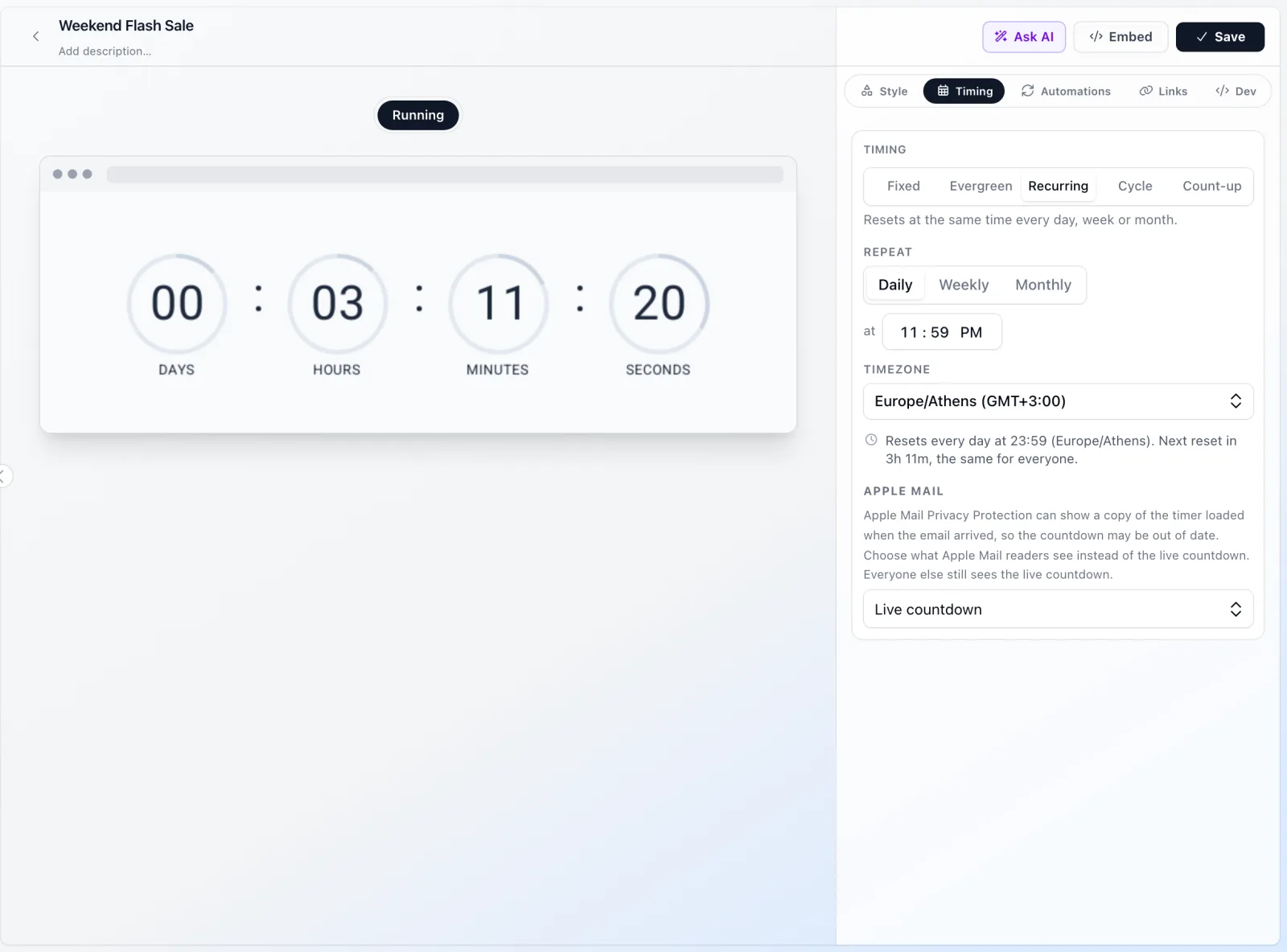
Open Timing and pick Recurring
Create a timer, open Timing and choose Recurring. The editor describes it as a timer that resets at the same time every day, week or month. Recurring timers are included from the Basic plan.
Choose daily, weekly or monthly
Daily resets at the same time every day. Weekly adds a weekday, Monday to Sunday. Monthly adds a day of the month from 1 to 31; on a day the month doesn't have, such as the 31st in April, it resets on the month's last day.
Set the reset time and time zone
Enter the reset time, for example 14:00 (2:00 PM), and pick a named time zone such as Europe/London or America/New_York. flashtimer only accepts named zones, not fixed offsets like +01:00, because offsets don't follow daylight saving.
Style it and check the live summary
Pick a layout and colors. The Timing panel shows a live summary of when the next reset happens, and the preview counts down to it, so you can confirm 14:00 means your 14:00.
Embed it once
Copy the image URL or HTML snippet from Embed and paste it into your email template. There is no end date to update: the same URL keeps counting to the next reset for as long as the timer is active.
What a recurring email countdown timer is for
Some deadlines repeat. An order cut-off for same-day dispatch, a weekly deal that ends every Sunday night, a payday sale that closes on the 25th, a live class that starts at 7pm every Thursday. A fixed timer would need a new date every time; a recurring countdown timer works the rule out on every open.
Because the GIF is drawn when the email is opened, a reader who opens your Tuesday email on Wednesday morning sees the time left until Wednesday's cut-off, not a countdown that ran out yesterday. That makes recurring timers safe in places that live a long time: transactional templates, newsletter footers and automated flows.
Three recurring countdown examples you can copy
Each of these is one timer with one rule. Set it up once and leave it in your template.
- Same-day dispatch cut-off: daily, 14:00, Europe/London. Pair it with "Order in the next … for dispatch today". It suits order confirmations and browse reminders, and the seasonal version belongs on a Christmas shipping deadline email.
- Weekly deal: weekly, Sunday, 23:59, America/New_York. A "deal of the week" newsletter block that always shows the time left in this week's offer.
- Monthly payday sale: monthly, day 25, 23:59, Australia/Sydney. Counts to the end of the 25th every month, and on a month with fewer days it never skips.
- Weekly live session: weekly, Thursday, 19:00, your audience's zone, for a recurring class or webinar reminder.
Time zones and daylight saving, handled
A reset rule is wall-clock time in a named time zone, so 14:00 in Europe/London is 14:00 in winter and in summer. When the clocks change, flashtimer resolves the rule in that zone rather than drifting by an hour.
The two awkward cases are handled on purpose. If your reset time falls inside the hour that doesn't exist when clocks spring forward (02:30 on that night in many zones), the reset happens at the moment the clocks change, and the periods either side of it share the lost time. If the time happens twice when clocks fall back, the reset happens at the first one. Monthly days clamp to each month's last day without drifting, so a rule for the 31st resets on April 30 and is back on May 31.
Every reader counts to the same instant, wherever they are. A London cut-off at 14:00 shows a New York reader the time left until 09:00 their time, which is the honest answer. Say the zone in your copy, such as "Order by 2pm UK time".
A recurring timer never ends
Recurring timers have no final deadline, so they never show an expiry message or fallback image. When a reset passes while the GIF is playing, the animation rolls into the next period instead of sitting at 00:00:00. If you want the offer to stop, archive the timer.
Timers that never end are kept out of the "expired" list and expiry automations, so a webhook on expiry won't fire for them. A timer that a Shopify or WooCommerce promotion manages can't be switched to recurring, because its end date comes from the store.
Cycle timers: loop every N minutes, hours or days
When the rule isn't a time of day but a length, use a Cycle timer. It counts down a fixed period and starts again, forever: every 6 hours for a rotating "deal of the moment", every 3 days for a short repeating promotion. The period can be anything from 1 minute to 999 days.
A cycle is anchored to the moment you created the timer, so every reader sees the same loop. Changing the period later moves the countdown to wherever the new period lands rather than restarting it, and a duplicated timer keeps looping in step with the original.
The third timer that never ends is Count-up, which shows the time since a start, such as "Our servers have been up for…" or the time since a launch. All three are on the Basic plan and up, and on Pro and up all three can also be created through the REST API with a recurrence, cycle or count_up setting.
Questions
Answered before you ask.
Keep reading
- Evergreen timersEvergreen countdown timer for email: a personal deadline for every readerGive every reader their own deadline with an evergreen countdown timer email: starts on open or on send, built for flows. Set up in minutes. Start free.
- Shipping deadlinesChristmas shipping deadline countdown email: count to the last day to orderSend a Christmas shipping deadline countdown email that counts to your real last-order date, plus daily “order by 2pm” dispatch timers. Start free today.
- Flash salesFlash sale countdown timer email: run a 24–72 hour sale that ends on timeBuild a flash sale countdown timer email for 24–72 hour sales: send schedule, subject lines, last-chance resend and timers that update on open. Start free.
- Webinars & eventsWebinar countdown timer email: from invite to “we're live” to replayAdd a webinar countdown timer email to invites and reminders that counts to start time in every time zone, then shows your replay link. Start free today.
- DevelopersCountdown timer API & MCP serverCreate and embed timers from code, Claude, ChatGPT, Gemini or Grok.