
Step by step
How to create a countdown timer with AI
Open Create with AI
From your timer list, open Create with AI. It is included from the Basic plan, with 5 generations a day on Basic, 10 on Pro, 30 on Business and 30 or more on Enterprise, set by its contract.
Describe the sale in a sentence
Say what it is, how long it runs and how it should feel. "Summer clearance, 48 hours, beachy blues, friendly tone" is plenty. You can also attach your logo (PNG, JPEG or WebP) and the AI builds the palette from its colors.
Review the timer in the editor
The AI creates the timer and opens it in the editor. Check the end date against your real deadline and set it to the exact minute in the date picker if you need to. Change the timing type there too, for example to Evergreen or Recurring.
Revise it by chat
Ask for changes the way you'd brief a designer: "make the digits gold", "hide the days", "shorter expiry message", "extend it by two days". A revision keeps everything you didn't mention.
Save and embed
Save, open Embed and paste the image URL or HTML into your email platform, or send it straight to a draft campaign on Pro and up.
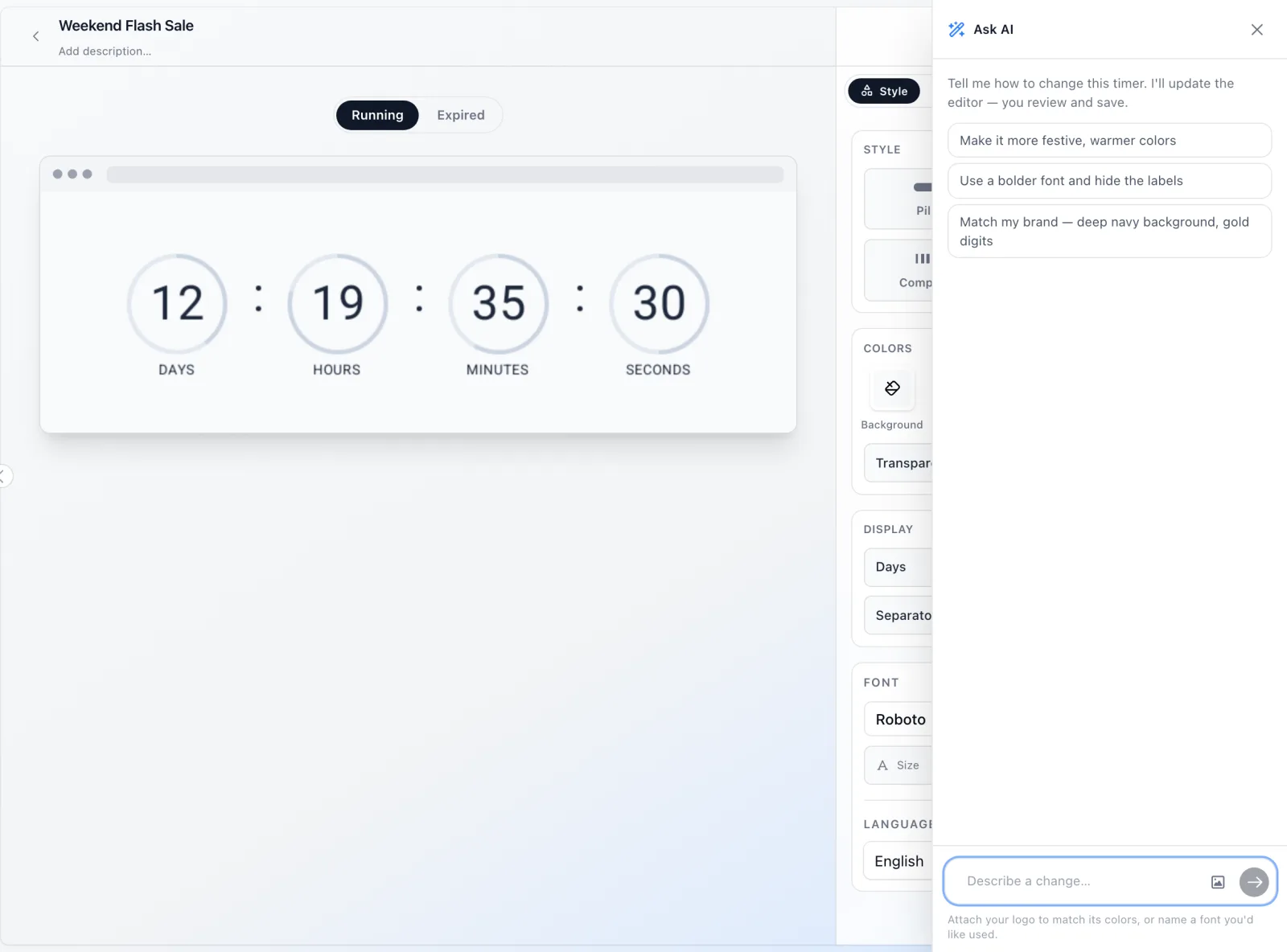
What the AI fills in from one sentence
The AI writes a complete timer, not a suggestion you have to rebuild. From your description it sets the name, how long the countdown runs, the layout (one of six: pill, boxes, circles, compact, minimal or rings), the size, and every color: background, digits, digit blocks and their borders, labels and separators. It decides whether to show days, labels and separators, and writes the expiry message readers see once the sale is over.
Some things it only sets when you ask, so it never guesses. Name a font ("use Playfair Display") and it uses that font if it is in your library, unless your brand kit sets a font, which comes first. Ask for French or Spanish and the labels switch language. Ask for a transparent background and it removes the backdrop and sets the email background color the GIF's edges blend into. Leave the duration out and it defaults to 3 days.
- Name and internal note
- Countdown length in minutes, hours, days or weeks
- Layout, size and full color palette
- Expiry message copy
- Font, language and transparent background, when you ask for them
Example prompts and what you get
Short prompts work. Mood words (urgent, calm, luxury, playful) steer colors and copy; numbers steer the deadline.
- "Black Friday sale ending in 3 days, red and black, urgent tone": a 3-day countdown on a dark background with red accents and a short, urgent expiry message.
- "Spring collection launch, 1 week, soft pastels, Playfair Display font": a 7-day timer in pastel tones set in Playfair Display, ready for a product launch email.
- "24-hour flash sale in French, transparent, sits on a navy banner": a 24-hour timer with French labels (JOURS, HEURES, MINUTES, SECONDES), no backdrop and edges blended for navy.
- "Cyber Monday, 12 hours, neon gaming style, hide the days": a 12-hour countdown with bright digits on a dark background and the days unit hidden.
- Logo attached, prompt "Welcome offer, 7 days": a 7-day timer in your logo's colors for a welcome discount email.
On-brand by default with your brand kit
If you have saved a brand kit (primary, secondary and accent colors, plus a font) under Brand Kit in the sidebar, Create with AI in the dashboard uses it exactly: your primary color as the background, your secondary color for the digit blocks and your accent color for the digits and labels. The AI still chooses the layout, size and copy, but your hex codes are never approximated.
No brand kit yet? Attach your logo to the prompt. The AI reads its dominant colors and builds the palette from them, aiming to keep the digits readable against their background, so check the contrast in the preview. The logo is used for that one request and isn't stored.
Revise any timer in plain words
The same AI edits timers you already have. Open a timer in the editor, ask for a change, and it returns the whole timer with only that change applied: "make it red" changes colors, not your copy or your deadline. The end date only moves when you explicitly ask to reschedule, such as "end it next Friday". In the editor a revision arrives as unsaved changes, so you see it in the preview and check the date before you save.
From an MCP client, revise_timer never moves the schedule of a timer without a single end date. An evergreen, recurring, cycle, count-up or personalized countdown timer can be restyled and rewritten, and the reply says so if you asked for a new end date.
Create timers from Claude, ChatGPT, Gemini, Grok or any MCP client
On Pro and up, flashtimer runs an MCP server, so AI assistants can work with your timers from the chat you already use. In Claude and Grok, add it as a custom connector; in ChatGPT, as a custom MCP server; in Gemini, as a custom app. Either way you sign in to flashtimer and choose the organization, with no key to copy, and the guide to flashtimer in AI assistants has the steps for each app. Then ask: "Create a flashtimer for our 48-hour members' sale, dark green and gold" or "List my timers ending this week and archive the Easter one".
Designing a timer from a brief and revising it use the same AI as Create with AI in the dashboard and share its daily allowance. The assistant can also create, change, copy, archive and delete timers, make them from your store's discounts, read their analytics, check your usage, and put a timer into a draft or scheduled campaign on a connected email platform once you confirm a preview. On Business it runs A/B tests and expires a timer when a product sells out. It can set up any timer type with exact settings, including recurring, cycle, count-up, evergreen and dynamic, so a daily 2pm cut-off is one request.
VS Code, the OpenAI API and other clients that take a fixed header connect with an API token instead, as the developer docs show. The MCP server shares the rate limit of the countdown timer API.
Questions
Answered before you ask.
Keep reading
- AI assistantsCreate email countdown timers from a chatConnect flashtimer to your AI assistant and ask for timers in plain words.
- Design and brandingCustom branded countdown timer for email that looks like the rest of your emailDesign a custom branded countdown timer for email: every layout, your colors and fonts, transparent backgrounds, your own domain and no watermark. Start free.
- Dynamic timersPersonalized countdown timer email: every reader counts to their own dateSend a personalized countdown timer email where each reader counts down to their own date: trial end, renewal or appointment, from a merge field. Try it free.
- DevelopersCountdown timer API & MCP serverCreate and embed timers from code, Claude, ChatGPT, Gemini or Grok.
- Black Friday & Cyber MondayBlack Friday countdown timer email: the 2026 playbookPlan your Black Friday countdown timer email for 2026: teaser, launch and last-chance sends, Cyber Monday timers and fallbacks after the sale. Start free.
- PricingSimple pricing for email countdown timersStart free with 20,000 views a month. Upgrade as you grow.