Before you start
What you need
Owner or admin in flashtimer
Connecting an integration is up to your organization's owners and admins.
A Klaviyo login
For the Klaviyo account whose campaigns and forms should get your timers.
Any flashtimer plan
Connecting is free. Sending timers into campaigns and sign-up forms is on Pro and up.
Step by step
Connect Klaviyo
You start in flashtimer, approve flashtimer in Klaviyo and land back in flashtimer. Klaviyo shows some screens only some of the time; those are marked.
- In flashtimer
Step 1: Open Integrations and click Connect Klaviyo
In flashtimer, go to Settings → Integrations and open Klaviyo. Click Connect Klaviyo, and Klaviyo opens in the same tab.
If you aren't signed in to Klaviyo in this browser, it asks you to sign in first.
app.flashtimer.com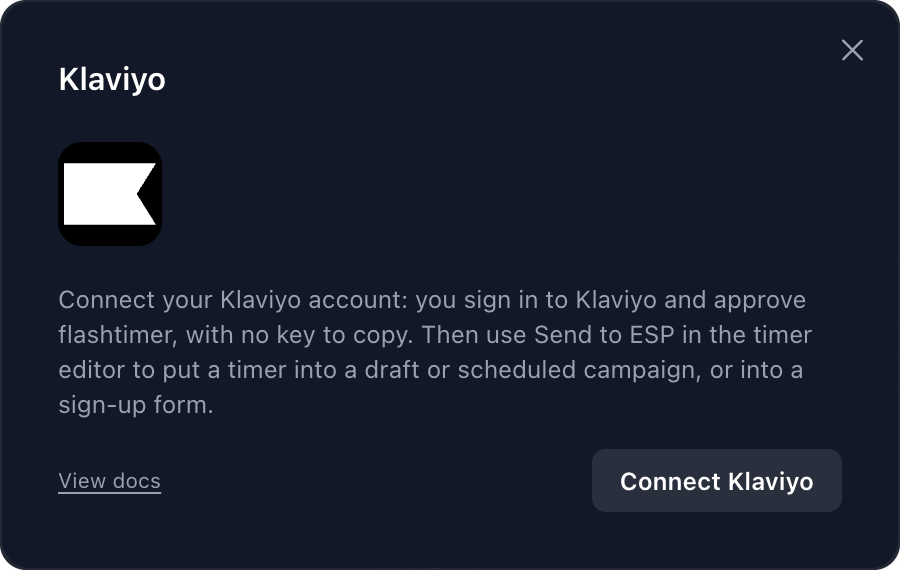
- In KlaviyoWhile Klaviyo reviews flashtimer's app
Step 2: If Klaviyo says the app hasn't been reviewed, click Continue
flashtimer's app is in Klaviyo's review for its App Marketplace. Until the review is done, Klaviyo shows this notice to everyone who connects it.
Klaviyo's advice is to go on only with an app you trust. You started this from your own flashtimer account, so click Continue.
www.klaviyo.com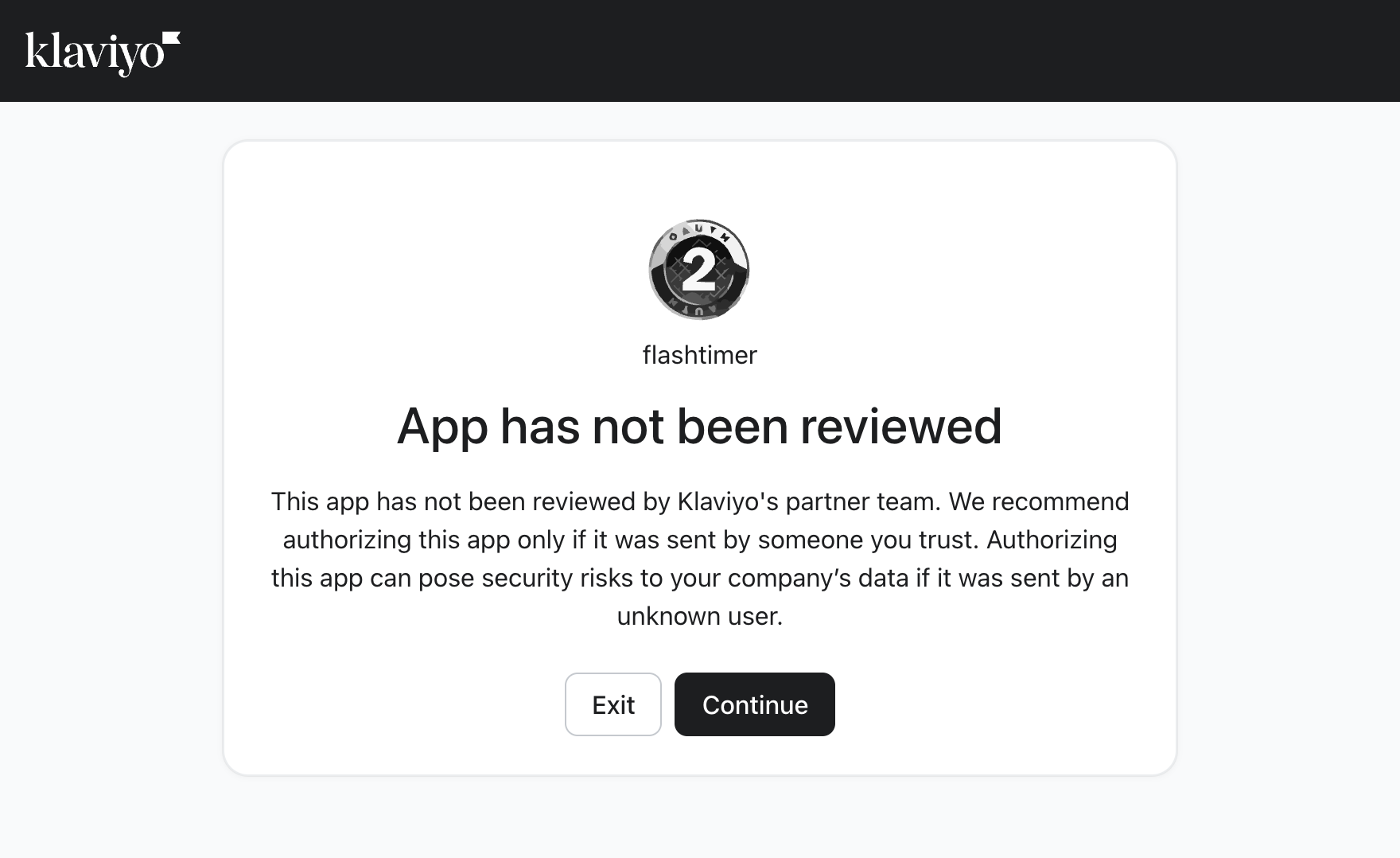
- In KlaviyoIf your login opens more than one account
Step 3: Pick the Klaviyo account
If your Klaviyo login can open more than one account, Klaviyo asks which one to connect. Current marks the account you last had open.
Click Select next to the account whose campaigns and forms should get your timers.
www.klaviyo.com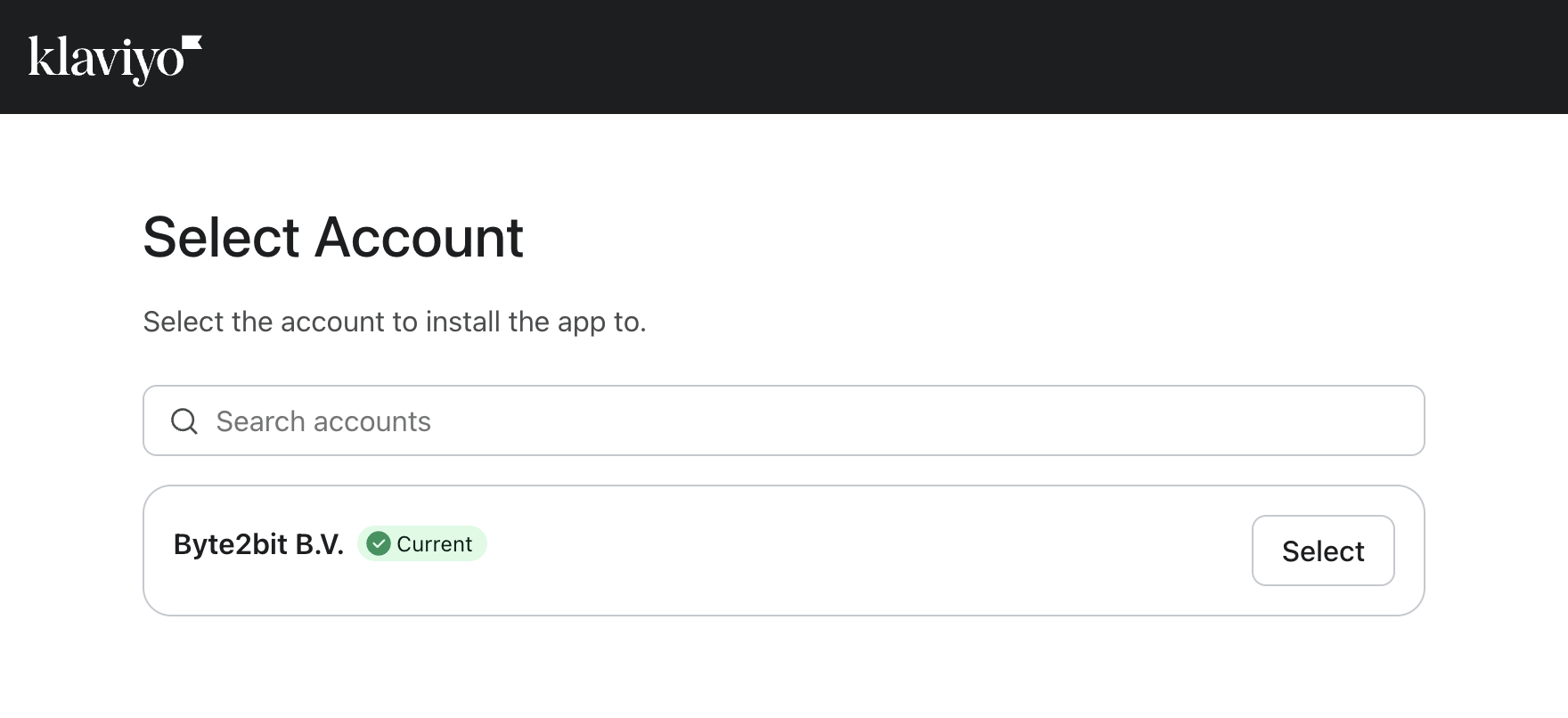
- In Klaviyo
Step 4: Check the account and click Allow
Klaviyo names the account at the top and lists what flashtimer may do in it. If it's the wrong account, click Switch account.
Then click Allow.
www.klaviyo.com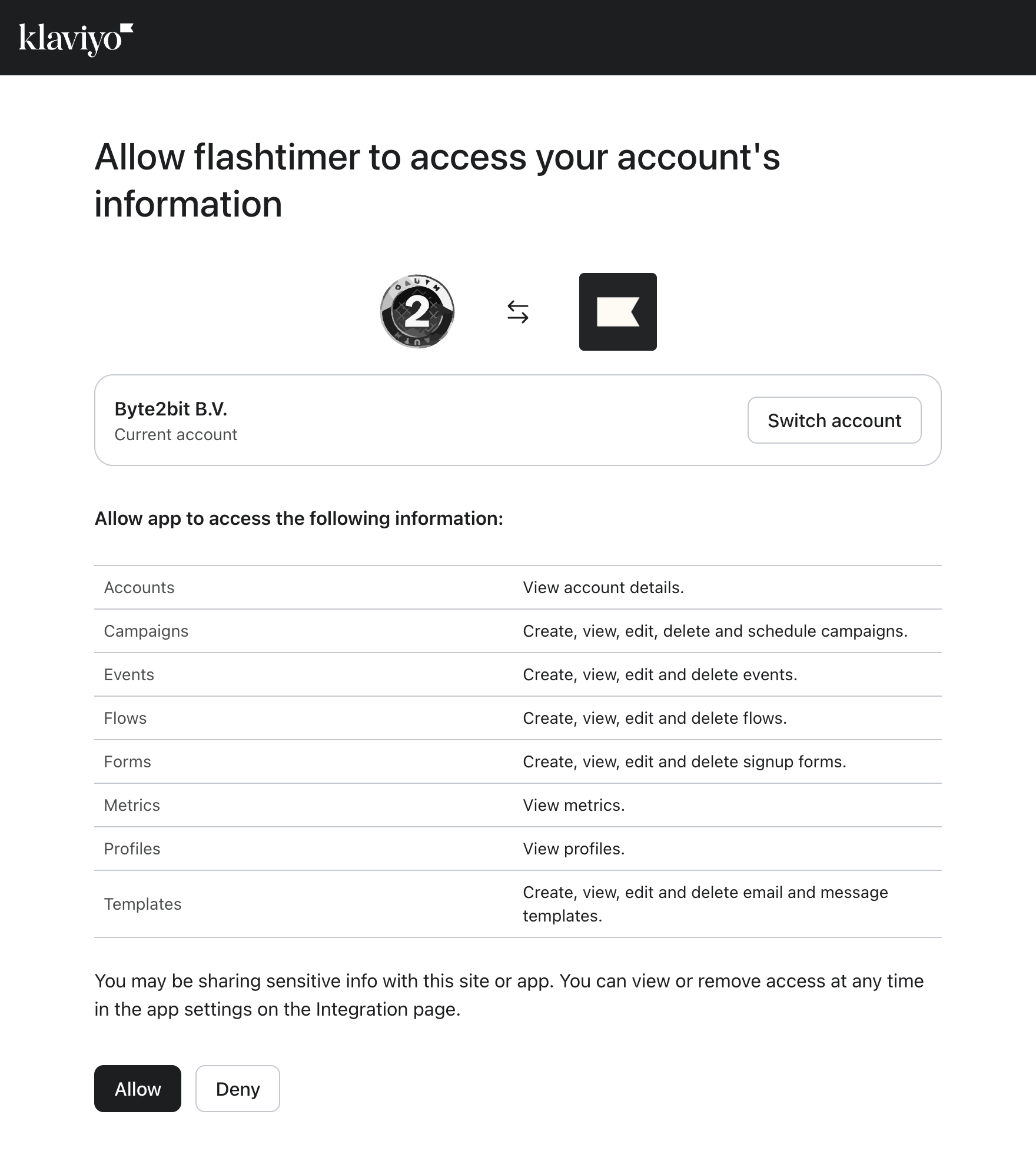
What flashtimer does with each permission
- Accounts
- Shows which Klaviyo account is connected, by name.
- Campaigns
- Lists your draft and scheduled email campaigns in Send to ESP, and puts the timer into the one you pick.
- Templates
- Adds the timer to that campaign's email.
- Forms
- Lists your sign-up forms and puts the timer into the one you pick, as a draft for you to publish.
- Events, Flows, Metrics, Profiles
- Asked for now for Klaviyo features flashtimer is adding, so you won't have to approve it again when they arrive. Not used yet.
flashtimer changes only what you ask it to: the campaign or form you pick in Send to ESP.
- In flashtimer
Step 5: Back in flashtimer: connected
Klaviyo sends you back to flashtimer, which shows Connected, the Klaviyo account and the organization it's connected to.
That's all: nothing to install in Klaviyo, and no key to keep safe.
app.flashtimer.com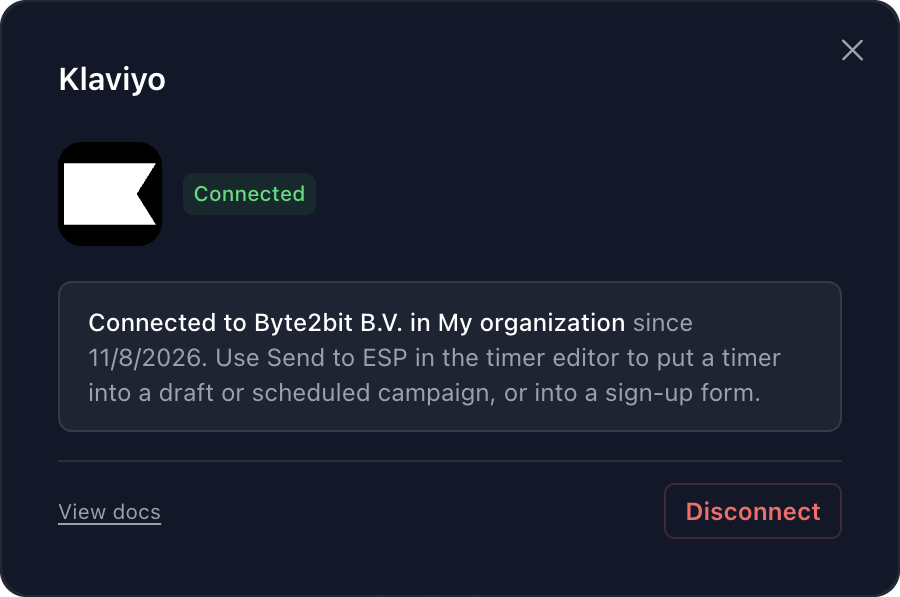
Once connected
What you can do next
Put a timer into a campaign
Pro and upOpen a timer, click Send to ESP, choose Klaviyo and pick a draft or scheduled campaign. You see a preview before anything changes.
Add a timer to a sign-up form
Pro and upSend to ESP → Klaviyo → Sign-up forms: pick the form, the step and the place. flashtimer saves it to the form's draft, and you publish it in Klaviyo.
Paste it in yourself
Every planClick Embed, copy the URL, and in Klaviyo's editor use Image → Select image → Dynamic Image. The Klaviyo countdown timer guide shows campaigns, flows and forms.
Manage
Manage the connection
- Disconnect
- In Settings → Integrations → Klaviyo, click Disconnect: flashtimer hands its access back to Klaviyo. Timers already in your emails keep counting down, since flashtimer serves the image.
- Reconnect
- If flashtimer is removed in Klaviyo, or the connection goes unused for 90 days, Klaviyo stops accepting it. flashtimer then emails your organization's owner and admins, and the Klaviyo dialog shows Reconnect. It does the same when a new feature needs a permission you haven't approved yet.
- Use another Klaviyo account
- An organization connects one Klaviyo account at a time. Disconnect, then connect again and pick the other account, or use Switch account on Klaviyo's approval screen.
- Move it to another organization
- A Klaviyo account can be connected to one flashtimer organization at a time. Connect it from another of your organizations and flashtimer asks before moving it there.
Troubleshooting
If something doesn't work
Most problems show a message on flashtimer's Integrations page. Here's what each one means and what to do.
- “Only owners and admins can change this connection.”
- Connecting Klaviyo is up to your organization's owners and admins. Ask one of them to connect it, or to make you an admin.
- “Klaviyo wasn't connected: flashtimer's access wasn't approved.”
- Deny was clicked on Klaviyo's screen, so nothing changed. Click Connect Klaviyo again and choose Allow.
- “This connection was started in another browser, or has expired.”
- Finish in the browser you started in, within 10 minutes. Start again from Settings → Integrations.
- “You started connecting Klaviyo from another organization.”
- You switched organizations in flashtimer while Klaviyo was open. Switch back to the one you started in, or connect again from the one you're in now.
- “Klaviyo didn't grant every permission flashtimer asked for.”
- Connect again and approve the whole list: flashtimer connects only when every permission is approved.
- It connected the wrong Klaviyo account
- Click Disconnect, connect again and check the account named on Klaviyo's approval screen before you click Allow. Switch account changes it.
- My campaign isn't in Send to ESP
- Send to ESP lists the 50 most recently created email campaigns that are drafts or scheduled. Sent campaigns and SMS campaigns aren't listed: for those, paste the timer in yourself from Embed.
Still stuck? Contact support.
Questions
Answered before you ask.
Keep reading
- Klaviyo integrationKlaviyo countdown timer for campaigns and flowsAdd a live Klaviyo countdown timer to campaigns and flows, with evergreen deadlines per subscriber via {{ person.KlaviyoID }}. Set it up in minutes. Start free.
- Evergreen timersEvergreen countdown timer for email: a personal deadline for every readerGive every reader their own deadline with an evergreen countdown timer email: starts on open or on send, built for flows. Set up in minutes. Start free.
- Abandoned cart emailsThe abandoned cart email countdown timer that starts when each shopper opensGive every shopper their own abandoned cart email countdown timer that starts on first open. Works in Klaviyo, Shopify and any ESP. Start free today.