Countdown timer not working in Outlook? Here's why
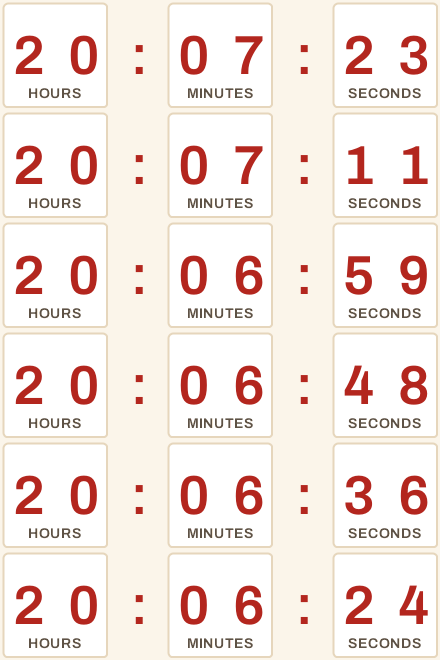
If your countdown timer is not working in Outlook, it is almost always classic Outlook for Windows showing only the first frame of the animated GIF. The timer still shows the correct time left at the moment the email was opened; it just doesn't tick. Outlook on the web, Outlook for Mac, the mobile apps and the new Outlook for Windows play the animation.
So the fix is not to make Outlook animate. It's to make sure a frozen frame still tells the reader everything they need: what ends, and exactly when. This guide covers which Outlook versions freeze, why, what the frozen frame actually shows, and the three things to add to your email so Outlook readers never miss the deadline.
Which Outlook versions show a frozen countdown timer
"Outlook" is at least six different email clients, and they don't behave the same way. Here is where each one stands, checked October 2026.
- Outlook 2007, 2010, 2013, 2016 and 2019 for Windows: first frame only. These versions render HTML email with Microsoft Word, and Word does not play GIF animation. Email on Acid and Can I email both list them as showing a still image. Can I email notes that Outlook 2019 with a Microsoft 365 account plays the animation three times and then stops.
- Outlook 2021, 2024 and Outlook for Microsoft 365 on Windows (classic): animation is possible but not something you can count on. Microsoft's own support article, The animated graphic in my email message doesn't work, says these versions play animated GIFs by default, but only while Windows animations are switched on (Show animations in Windows 10, Animation effects in Windows 11). That's a per-computer setting you can't see or control from an email: with it off, Outlook shows the first frame. When Microsoft first added GIF playback, Litmus reported that looping GIFs play three times and then pause.
- New Outlook for Windows: animates. It doesn't use Word to render email; it is built on the same code as Outlook on the web, so a countdown GIF behaves as it does in a browser.
- Outlook on the web and Outlook.com: animates (Can I email).
- Outlook for Mac: animates (Can I email lists macOS Outlook as supported).
- Outlook for iOS and Android: animates (same source).
The practical takeaway: plan for some of your Windows desktop readers to see a still image. The share is likely higher on B2B lists, where people read email on work PCs running classic Outlook. Microsoft has said it will keep supporting classic Outlook until at least 2029 (reported by Petri), so this isn't going away soon.
Why Outlook shows only the first frame
Since Outlook 2007, the Windows desktop app has used Word's HTML engine to display email instead of a browser engine. Word was built to lay out documents, not to play animation, so when it meets an animated GIF it paints frame one and stops there.
A live email countdown timer is an animated GIF. The server draws it at the moment the image is requested: frame one is the time left right now, frame two is one second later, and so on. That design is what makes a timer work in every email platform without JavaScript, which no email client runs. It also means Word-based Outlook gets a perfectly accurate frame one and simply never moves on to frame two.
There's a second, separate reason a timer can look "broken" in classic Outlook: images may not load at all. Microsoft's article Block or unblock automatic picture downloads in classic Outlook explains that classic Outlook is set by default to block automatic picture downloads from the internet. Until the reader clicks Download pictures in the message bar, or adds you as a safe sender, they see an empty box or your alt text instead of the timer.
What the frozen frame actually shows
This is the part most guides skip. A frozen countdown is not a wrong countdown.
Because a live timer is generated when the image is fetched, frame one shows the real time remaining at that moment. If a reader opens your email in Outlook 2016 at 9:14 am and your sale ends at 11:59 pm, they see something like 14 : 45 : 12 (hours, minutes, seconds). That number is correct. It just stays on screen without counting down.
If they close the email and open it again in the afternoon, Outlook usually requests the image again and the new first frame shows the new time left. Readers who download pictures late see the time left at the moment they clicked Download pictures, not the moment the email arrived.
After the deadline, a well-built timer stops showing zeros and switches to an expiry message or an "offer ended" image. In classic Outlook that expired state is a single still frame anyway, so it looks exactly as intended.
The real risk with a frozen frame isn't accuracy. It's that a static 14 : 45 : 12 with no context reads like decoration. The reader has to work out that it means "today, before midnight". That's what the next section fixes.
How to fix a countdown timer that doesn't work in Outlook
You can't force classic Outlook to animate a GIF. You can make sure the email works whether or not it does.
1. State the deadline in text, right next to the timer
Write the deadline as a plain sentence under or above the timer: "Sale ends Sunday, November 30 at 11:59 pm ET." Include the time zone. This one line covers every case: classic Outlook's still frame, readers with images blocked, screen reader users, and anyone who skims.
It's also the line a frozen timer needs to make sense. "14 hours left" plus "ends tonight at 11:59 pm ET" reads instantly. Most of the best practices for email countdown timers start from this one habit.
2. Write alt text that carries the deadline
Alt text shows wherever the image doesn't load, which in classic Outlook means every reader who hasn't downloaded pictures. "Countdown timer" tells them nothing. Write the deadline instead:
<img
  src="https://your-timer-url.gif"
  alt="Sale ends Sunday, November 30 at 11:59 pm ET"
  width="600"
  style="display: block; max-width: 100%; height: auto; border: 0;"
/>
Set a width attribute too. Classic Outlook ignores CSS max-width and can blow an image up to its full pixel width if the attribute is missing.
3. Optional: show classic Outlook a different block with conditional comments
Word-based Outlook reads a special kind of HTML comment, <!--[if mso]>, that every other email client ignores. You can use it to give classic Outlook its own content, for example a bold text deadline in place of the timer, while everyone else gets the live countdown:
<!--[if mso]>
  <table role="presentation" width="100%" border="0" cellpadding="0" cellspacing="0">
    <tr>
      <td
        align="center"
        style="font-family: Arial, sans-serif; font-size: 20px; font-weight: bold; padding: 12px;"
      >
        Sale ends Sunday, November 30 at 11:59 pm ET
      </td>
    </tr>
  </table>
<![endif]-->
<!--[if !mso]><!-->
<img
  src="https://your-timer-url.gif"
  alt="Sale ends Sunday, November 30 at 11:59 pm ET"
  width="600"
  style="display: block; max-width: 100%; height: auto; border: 0;"
/>
<!--<![endif]-->
Two honest caveats. First, the mso block also catches classic Outlook 2021 and Microsoft 365 readers whose Outlook would have animated the GIF. Second, the frozen first frame is accurate, so for most senders it's better to keep the timer for everyone and rely on the text line from step 1. Use conditional comments when you'd rather Outlook readers see a clean message than a still clock, or when your timer has a busy design that reads poorly as a single frame.
Conditional comments only survive if your email platform keeps them. Paste them into a raw HTML or custom code block, not a rich text block, and send a test to a classic Outlook inbox to confirm they weren't stripped.
4. Design the timer so frame one stands on its own
Avoid designs where the first frame is blank, mid-transition or missing labels. A timer with clear DAYS HOURS MINUTES SECONDS labels and a short heading such as "Sale ends in" reads well as a still image. Flip-card and fade effects that start from an empty state are the ones that look broken in Outlook.
How flashtimer handles Outlook
flashtimer timers are animated GIFs drawn at the moment each email is opened, so in classic Outlook the frame people see is the real time left at that moment. It doesn't tick there, and no GIF-based timer can make it tick. Everywhere else (Gmail, Apple Mail, Yahoo, Outlook on the web, Mac and mobile, and the new Outlook) it counts down.
A few details that help in Outlook specifically:
- The HTML snippet in the Embed your timer dialog wraps the image in a full-width table cell with an
alignattribute, because Word-based Outlook ignoresmargin: autocentering. The image keepsdisplay: blockandmax-width: 100%for everyone else. - The snippet's alt text is "Countdown Timer". Change it to your deadline sentence in your email platform after you paste it.
- After the deadline, the timer shows your expiry message, or on paid plans your own fallback image, so a late Outlook reader sees "This offer has ended" instead of a row of zeros.
- If you'd rather design around a still image, the custom branded countdown timer editor lets you pick a layout and labels that read clearly on frame one.
Outlook is one of two clients with a special case. The other is Apple Mail, which can load images before the reader opens the email. If your timer shows the wrong time rather than a still one, read why a countdown timer GIF isn't updating.
Test before you send
Preview panes in email platforms don't tell you how Outlook will render a GIF. Before a big send:
- Send a real test to a classic Outlook for Windows inbox if anyone on your team still uses it. Check that the first frame is readable and that the text deadline sits next to it.
- Click Download pictures in the message bar so you see the timer and not just the alt text, then close and reopen the email a few minutes later to confirm the time moves on.
- If you used conditional comments, confirm the Outlook-only block appears in classic Outlook and does not appear in Outlook on the web or the new Outlook.
- Check the alt text by viewing the test with images blocked.
The full pre-send routine, including Gmail and Apple Mail, is in our guide on how to add a countdown timer to an email.
FAQ
Do countdown timers work in Outlook?
Yes, in most versions. Outlook on the web, Outlook.com, Outlook for Mac, the iOS and Android apps and the new Outlook for Windows play the animated countdown. Classic Outlook for Windows (2007 to 2019, and 2021, 2024 or Microsoft 365 when Windows animations are off) shows only the first frame: the correct time left at opening, without ticking.
Why does my countdown timer show the wrong time in Outlook?
It usually doesn't. The frozen frame shows the time left when the image loaded. If the reader opened the email hours ago and left it on screen, the number is hours old. Reopening the email normally fetches a fresh image. If the time was wrong at the moment of opening, check the timer's time zone and end date.
Can I make an animated GIF play in classic Outlook?
Not reliably. Outlook 2007 to 2019 can't play GIF animation at all. Outlook 2021, 2024 and Microsoft 365 can, but each reader's Windows animation setting decides it, and you can't control that from an email. Plan for a still first frame and put the deadline in text.
What is the <!--[if mso]> code for?
It's a conditional comment that only Word-based Outlook for Windows reads. Content inside <!--[if mso]> shows only in classic Outlook; content inside <!--[if !mso]><!--> shows everywhere else. Use it to swap a countdown for a text deadline or a static image in classic Outlook. Paste it into an HTML block so your email platform doesn't strip it.
Does the new Outlook for Windows support countdown timers?
Yes. The new Outlook for Windows doesn't render email with Word; it shares its code with Outlook on the web, which plays animated GIFs. A live countdown timer counts down there as it does in a browser. Send yourself a test anyway, since your readers may still be on classic Outlook.
Why is my countdown timer not showing at all in Outlook?
Classic Outlook blocks automatic picture downloads from the internet by default, so the reader sees your alt text or an empty box until they click Download pictures or add you to their safe senders. That's why the alt text should state the deadline, and why the deadline should also appear in the email text.
Add a timer that still makes sense in Outlook
A live countdown that ticks in Gmail, Apple Mail and the new Outlook, and still shows an accurate time left in classic Outlook, takes about five minutes to set up. Pair it with one line of deadline text and every reader gets the message. Start free — no card.