Before you start
What you need
Owner or admin in flashtimer
Connecting an integration is up to your organization's owners and admins, on Pro and up.
Access to your site's settings
A Squarespace login that can open the site's Settings. If you don't see Developer tools there, ask whoever owns the site.
A plan with Squarespace's Commerce APIs
They come with Squarespace's Core, Plus and Advanced plans, and the older Commerce Advanced plan.
Step by step
Connect Squarespace
First you make a key for flashtimer in Squarespace (steps 1 and 2), then you paste it into flashtimer (steps 3 and 4). Step 5 is for later, if you ever need a new key. Squarespace's screens are described button by button.
- In Squarespace
Step 1: In Squarespace, open Developer API keys
Sign in to Squarespace and open your site. In the menu on the left, click Settings, then Developer tools, then Developer API keys. On some dashboards the same page is under Settings → Advanced → Developer API Keys.
A Developer API key is how Squarespace lets another service read your store, with only the permissions you give it. You can delete it at any time.
- In Squarespace
Step 2: Generate a key with Discounts and Products set to Read only
Click Generate key and name it flashtimer, so you know later what it's for.
In the list of permissions, set Discounts to Read only and Products to Read only. Leave everything else off. Products is for Stock Monitor: with Discounts alone, timers still follow your discounts.
Click Generate and copy the key. Squarespace shows it only this once, so keep it somewhere safe for a minute. A key's permissions can't be changed afterwards: if you need another permission later, you make a new key (step 5).
What flashtimer does with each permission
- Discounts: Read only
- Reads your discounts: their names, codes, start and end dates, and how many uses are left. This is what timers follow.
- Products: Read only
- Reads your physical products and how many of each variant are left, so Stock Monitor can end a timer when a product runs low.
flashtimer only reads: both permissions are Read only. It can never change a discount, a product, a price, an order or your stock.
- In flashtimer
Step 3: In flashtimer, paste the key
In flashtimer, go to Settings → Integrations, open the E-commerce tab and click Squarespace.
In API key, paste the key from step 2, then click Connect Squarespace.
flashtimer tries the key before saving anything. If Squarespace refuses it, or the key can't read your discounts, the message under the key says what to change.
app.flashtimer.com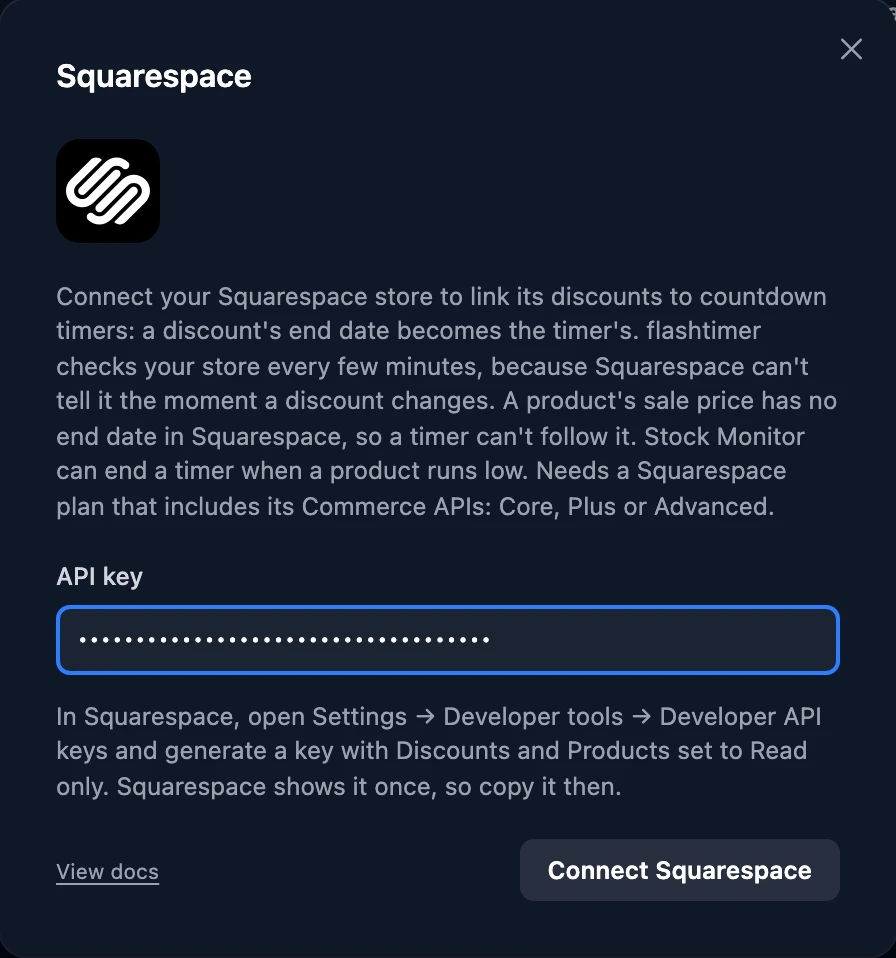
- In flashtimer
Step 4: Connected: choose what flashtimer does by itself
The dialog shows Connected and your site's address. From now on flashtimer checks your store every few minutes. Squarespace can't tell flashtimer the moment a discount changes, so a change reaches your timers at the next check rather than at once.
Under Automation, tick what you want done for you. Auto-create timers makes a timer for each new discount, Auto-update timers moves a timer's end when you change the discount's dates, and Auto-archive timers puts a timer away when its discount is deleted, ends or has no uses left. Everything is off until you tick it, and your choice is saved as you make it.
Include single-use codes is for codes that can be used only once in all, like the ones an app makes for one customer. They get no timer unless you tick it.
app.flashtimer.com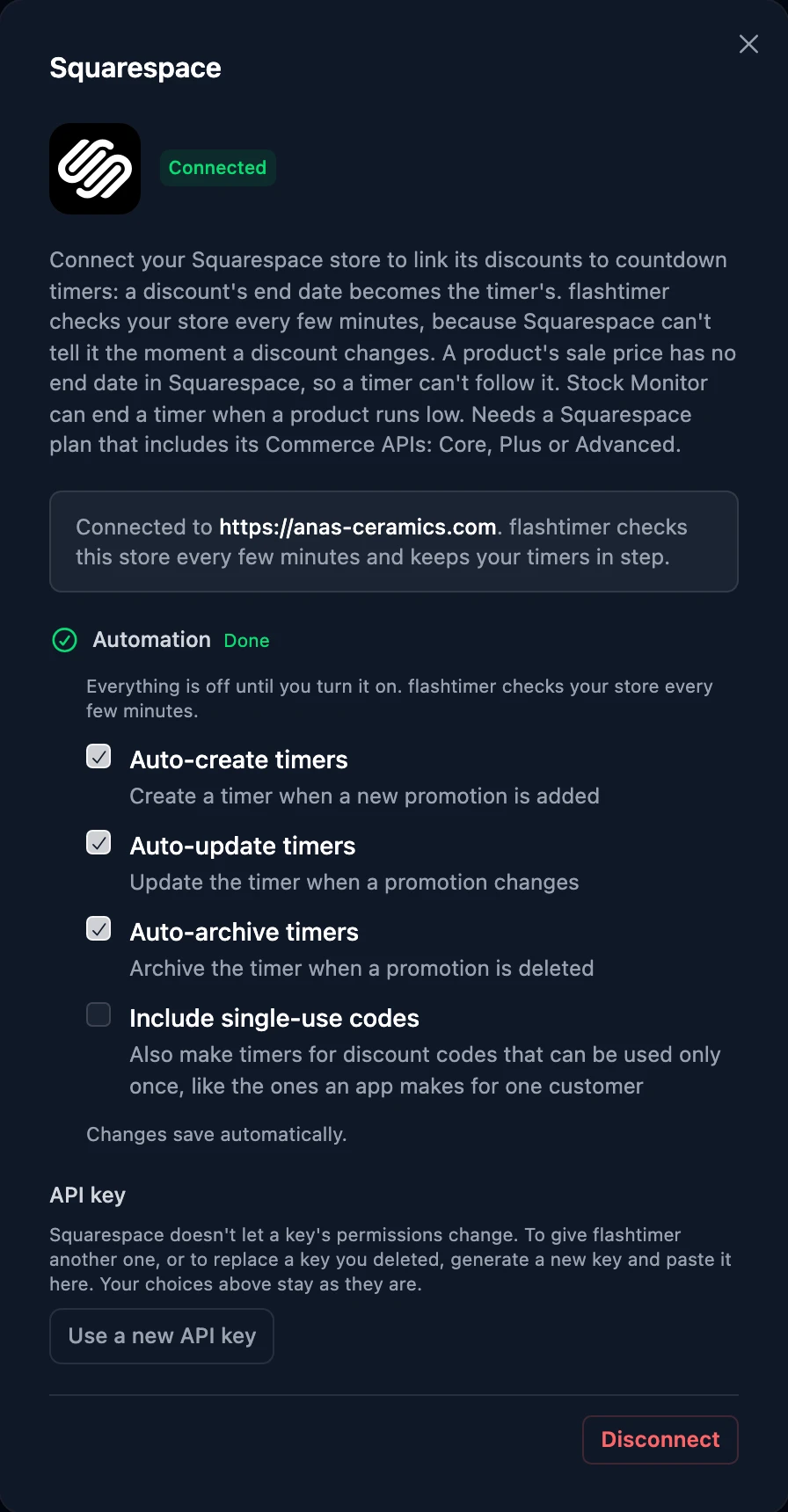
- In flashtimerLater, if you need it
Step 5: Use a new key without losing your choices
A Squarespace key's permissions can't change, so adding Products later for Stock Monitor, or replacing a key you deleted, takes a new key. Make it as in step 2, then in flashtimer's Squarespace dialog click Use a new API key, paste it and click Save key.
flashtimer checks the new key the same way. When it belongs to the same site, your Automation choices and your timers stay as they are. Then delete the old key in Squarespace.
app.flashtimer.com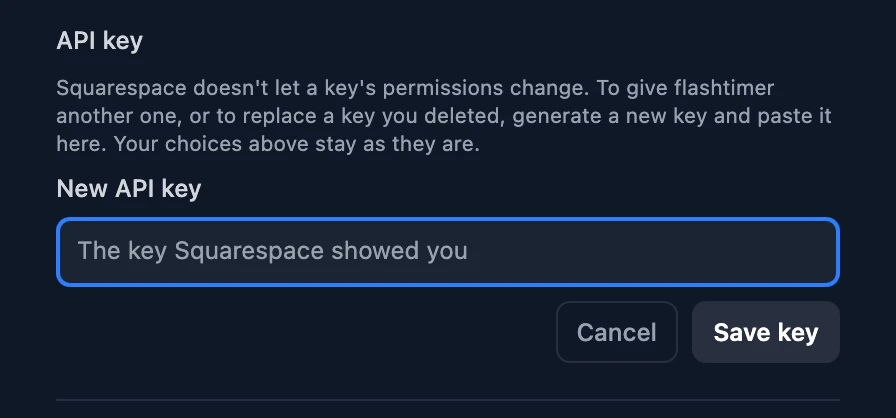
Once connected
What you can do next
Make a timer from a discount
Pro and upOn the Timers page, open the arrow next to New timer and under Import choose Squarespace. Pick a discount and click Create timer: it counts down to the discount's end, or to its start if it hasn't started yet. A timer you make this way tells you when the date changes and offers to Sync.
Let new discounts become timers by themselves
Pro and upWith Auto-create timers on, every new discount with an end date gets a timer within a few minutes, and with Auto-update and Auto-archive on it follows the discount from then on without you.
End a timer when a product sells out
BusinessOpen a timer, go to Automations and add a Stock Monitor: pick a product and the stock level at which the timer should end. All of a product's variants count together. A product with unlimited stock can't run out, so it never ends a timer.
Manage
Manage the connection
- Disconnect
- In Settings → Integrations → Squarespace, click Disconnect. Your timers stay and keep counting down; they stop following your store. To take the key away too, delete it on Squarespace's Developer API keys page.
- Replace the key, or add a permission
- Make a new key (step 2) and give it to flashtimer with Use a new API key (step 5). Your Automation choices are kept. Then delete the old key in Squarespace.
- Connect another site
- An organization connects one Squarespace site at a time. Use a key from the other site: timers that followed the old site are let go of, so they never follow a discount from the wrong one.
Troubleshooting
If something doesn't work
Most problems show a message on flashtimer's Integrations page. Here's what each one means and what to do.
- “Squarespace didn't accept this API key.”
- Copy the key again, all of it, with no space before or after. If you no longer have it, Squarespace can't show it again: generate a new one (step 2).
- “This API key isn't allowed to read your discounts.”
- The key was made without Discounts. Squarespace doesn't let a key's permissions change, so generate a new one with Discounts and Products set to Read only, and use that.
- “This API key isn't allowed to read your products, which Stock Monitor needs.”
- The key was made without Products. Make a new key with both permissions and give it to flashtimer with Use a new API key (step 5). Your timers keep following your discounts meanwhile.
- “Squarespace says this site's plan doesn't include its Commerce APIs …”
- Squarespace's Commerce APIs come with its Core, Plus and Advanced plans, and the older Commerce Advanced. Change the site's plan in Squarespace, then connect again.
- “Squarespace says this site's subscription has expired …”
- Renew the site's plan in Squarespace. There's nothing to do in flashtimer: your timers pick the store up again at the next check.
- “Squarespace asked flashtimer to slow down …”
- Squarespace allows each key 300 requests a minute, shared by everything that uses it. If another tool uses the same key, give flashtimer a key of its own.
- I changed a discount's date and my timer didn't move
- Give it a few minutes: flashtimer checks Squarespace on a schedule. A timer you made yourself from a discount, or linked by hand, doesn't change on its own: open it and click Sync to the new date. Timers that flashtimer created through Auto-create follow the discount themselves, as long as Auto-update timers is ticked.
- My new discount didn't become a timer
- Check that Auto-create timers is ticked, and that the discount has an end date that hasn't passed and uses left. A code that can be used only once gets no timer unless Include single-use codes is ticked. Then give it a few minutes.
- My product's sale price isn't in the list
- In Squarespace a sale price has no start or end date, so there is nothing for a timer to count down to. Make a discount with an end date instead (an automatic one, if shoppers shouldn't need a code), or set the timer's end date yourself.
Still stuck? Contact support.
Questions
Answered before you ask.
Keep reading
- Squarespace integrationSquarespace email countdown timer that follows your discountsA Squarespace email countdown timer that follows your discount codes and automatic discounts. Connect with a read-only API key, nothing to install. Start free.
- IntegrationsWorks with 40+ email, e-commerce and automation platformsKlaviyo, Mailchimp, Shopify, HubSpot and every ESP that shows images.
- DevelopersCountdown timer API & MCP serverCreate and embed timers from code, Claude, ChatGPT, Gemini or Grok.