Before you start
What you need
Owner or admin in flashtimer
Connecting an integration is up to your organization's owners and admins, on Pro and up.
A BigCommerce login that can create API accounts
The store owner's login works. A staff login works if it is allowed to manage API accounts; if you don't see Store-level API accounts under Settings, ask the store owner.
Promotions or coupon codes with an end date
flashtimer reads both kinds: promotions (automatic or with a coupon code) and the older coupon codes under Marketing. A timer counts down to the end date, so give the ones you want timers for an end date.
Step by step
Connect BigCommerce
First you make an API account for flashtimer in your BigCommerce control panel (steps 1 to 3), then you paste two of its values into flashtimer (steps 4 and 5).
- In BigCommerce
Step 1: In BigCommerce, open Settings → Store-level API accounts
Sign in to your BigCommerce control panel. In the menu on the left click Settings, scroll down to the API section and click Store-level API accounts.
An API account is your store's way of giving another service access of its own, which you can take away again whenever you like. Click Create API account.
- In BigCommerce
Step 2: Name it flashtimer and set three permissions to read-only
Leave Token type on V2/V3 API token. In Name, type flashtimer, so you recognise the account later.
Under OAuth scopes, set Marketing to read-only (your promotions and coupons) and Products to read-only (for Stock Monitor). Set Information & Settings to read-only too, so flashtimer can show your store's name. Leave everything else on None, then click Save.
This is the step to get right: BigCommerce doesn't let you change an API account's permissions after you save it. If one is missing, you make a new account.
What flashtimer does with each permission
- Marketing: read-only
- Reads your promotions and coupon codes: their names and codes, start and end dates, whether they are switched on, and how many uses are left.
- Products: read-only
- For Stock Monitor: reads your products' names and how many are left, variants included.
- Information & Settings: read-only
- Reads your store's name and time zone, so the dialog says which store is connected. Optional: without it, flashtimer shows your store hash.
flashtimer never changes a promotion, a coupon, a product, a price, an order or your stock: every permission it asks for is read-only, and BigCommerce holds it to that. The one thing it adds is its event subscriptions, which belong to the flashtimer API account itself and go when you disconnect or delete the account.
- In BigCommerce
Step 3: Copy the access token and your store hash
BigCommerce now shows the account's Client ID, Client Secret and Access token. flashtimer needs only the Access token: copy it and keep it somewhere safe for a minute. BigCommerce shows it only this once; if you close the window without it, delete the account and make a new one. Treat it like a password.
Your store hash is in the API path at the top of the API account, like
https://api.bigcommerce.com/stores/abc123/v3/: it is the part after/stores/, hereabc123. You can copy the whole API path; flashtimer reads the hash out of it. - In flashtimer
Step 4: In flashtimer, paste the store hash and the access token
In flashtimer, go to Settings → Integrations, open the E-commerce tab and click BigCommerce.
Paste your store hash (or the whole API path) into Store Hash and the token into Access Token, then click Connect BigCommerce. flashtimer tries both before saving anything: a token it can't use, a hash that leads to no store, or a permission left on None each say so beside the box to fix.
app.flashtimer.com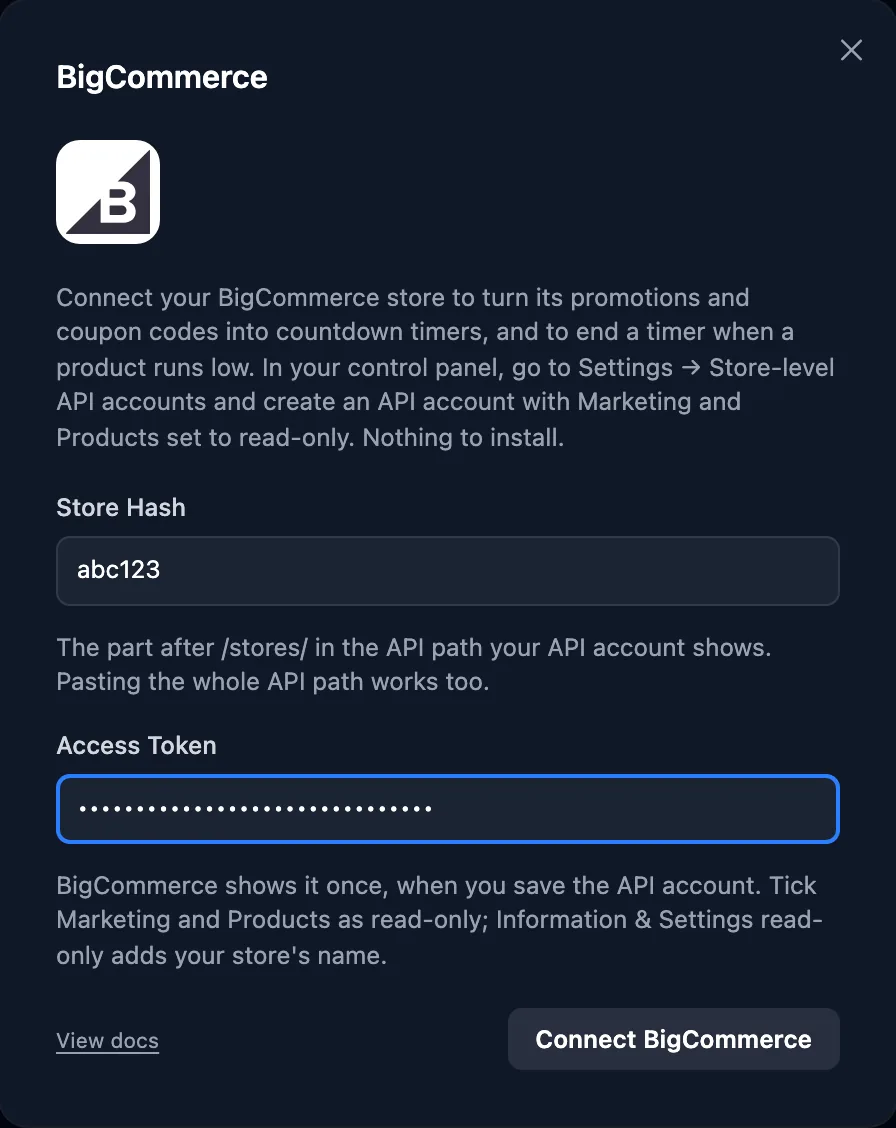
- In flashtimer
Step 5: Connected: choose what flashtimer does by itself
The dialog shows Connected and your store's name. BigCommerce doesn't tell other services when a promotion changes, so flashtimer checks your promotions every few minutes instead. Stock is different: connecting subscribes the flashtimer API account to your store's stock events, so BigCommerce tells flashtimer when a product's stock changes. You'll see them listed under the API account's webhooks (Event subscriptions) in BigCommerce. There is nothing to install and nothing for you to set up.
Under Automation, everything starts unticked. Tick Auto-create timers to make a timer for each promotion and coupon with an end date, Auto-update timers to move a timer's end when you change that date, and Auto-archive timers to put a timer away when the promotion is switched off, deleted, used up or over. Your choice is saved as you make it.
The fourth choice, Include single-use coupons, starts unticked too. A coupon that can be used only once in all, like a welcome code made for one customer, gets no timer unless you tick it.
That's the connection done.
app.flashtimer.com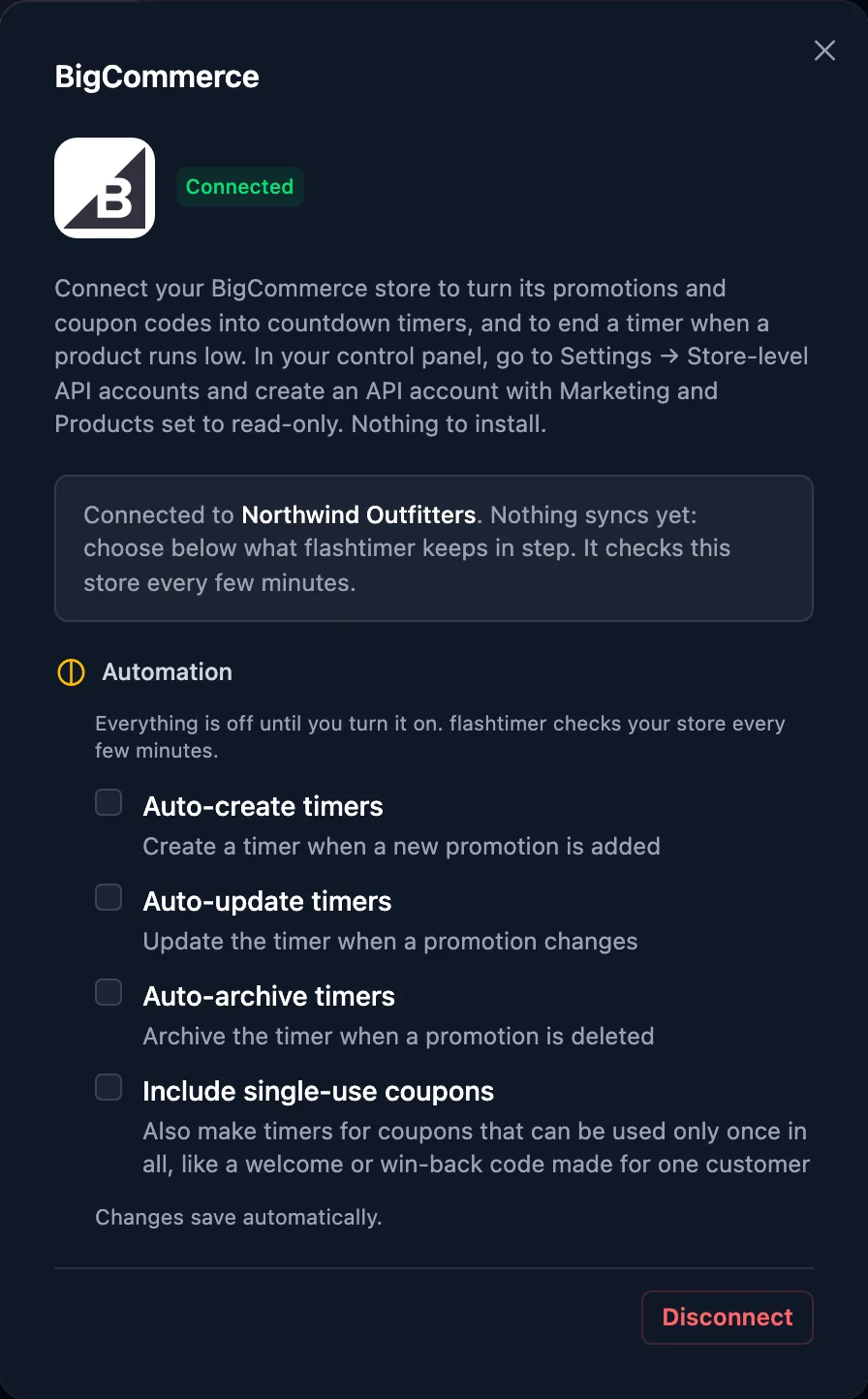
Once connected
What you can do next
Make a timer from a promotion or a coupon
Pro and upOn the Timers page, open the arrow next to New timer and under Import choose BigCommerce. Pick a promotion or a coupon and click Create timer: it counts down to that end date. A timer you make this way tells you when the date changes and offers to Sync.
Let new promotions become timers by themselves
Pro and upWith Auto-create timers on, a new promotion or coupon with an end date gets a timer within a few minutes. One scheduled to start later gets a timer that counts down to its start, and switches to its end once it begins.
End a timer when a product runs low
BusinessOpen a timer, go to Automations and add a Stock Monitor: pick a product and the stock level at which the timer should end. The product needs inventory tracking on in BigCommerce; for one tracked by variant, flashtimer counts all its variants together. BigCommerce tells flashtimer when the stock changes, so the timer ends within seconds of the sale that takes it to that level.
Manage
Manage the connection
- Disconnect
- In Settings → Integrations → BigCommerce, click Disconnect. flashtimer removes the stock event subscriptions it added to the API account, so there is nothing to clean up in your store. Your timers stay and keep counting down; they stop following your store. To take the access away too, delete the flashtimer API account under Settings → Store-level API accounts: anything still under it goes with it.
- Replace the access token
- Make a new API account in BigCommerce (steps 1 to 3), then in flashtimer click Disconnect and connect again with the new token. The Automation choices start unticked again, so tick yours once more. Then delete the old API account.
- Connect another store
- An organization connects one store at a time. Connect with the other store's hash and token: timers that followed the old store are let go of, so they never follow a promotion from the wrong store.
Troubleshooting
If something doesn't work
Most problems show a message on flashtimer's Integrations page. Here's what each one means and what to do.
- “BigCommerce didn't accept this access token for this store.”
- Check that the token and the store hash come from the same API account, with nothing cut off when you copied them. If you closed BigCommerce's window before copying the token, delete the API account and make a new one.
- “BigCommerce has no store with this hash.”
- The store hash is the part after
/stores/in the API account's API path, letters and digits only. Paste the whole API path if you're unsure: flashtimer reads the hash out of it. - “This API account can't read your …”
- A permission was left on None when the API account was made, and BigCommerce doesn't let you change it afterwards. Make a new API account with Marketing and Products on read-only (step 2), connect with its token, and delete the old one.
- “Your BigCommerce store is answering more requests than its plan allows just now.”
- Every app connected to your store shares one allowance of requests, and something used it up for a moment. flashtimer waits and tries again by itself; nothing to do.
- “Your BigCommerce store is down for maintenance or paused (HTTP 503).”
- BigCommerce answers this while a store is in maintenance, or paused for billing. flashtimer keeps trying, and catches up as soon as the store is back.
- My new promotion didn't become a timer
- Give it a few minutes: flashtimer checks your store every few minutes. Then check that Auto-create timers is ticked, that the promotion is switched on, and that it has an end date that hasn't passed. A coupon that can be used only once in all gets no timer unless Include single-use coupons is ticked.
- I changed a promotion's end date and my timer didn't move
- A timer you made yourself from a promotion, or linked by hand, doesn't change on its own: open it and click Sync to the new date. Timers that flashtimer created through Auto-create follow the promotion themselves within a few minutes, as long as Auto-update timers is ticked.
- My Stock Monitor timer ended minutes after the sale, not seconds
- BigCommerce sends stock events only for products with inventory tracking on. If the event subscriptions under the flashtimer API account were deleted, or BigCommerce switched them off after deliveries failed, flashtimer adds them back within the hour by itself. Until then its check every few minutes still ends the timer.
Still stuck? Contact support.
Questions
Answered before you ask.
Keep reading
- BigCommerce integrationBigCommerce email countdown timer that follows your promotionsA BigCommerce email countdown timer that follows your promotions and coupon codes. Connect with a read-only API account, no app to install. Start free.
- IntegrationsWorks with 40+ email, e-commerce and automation platformsKlaviyo, Mailchimp, Shopify, HubSpot and every ESP that shows images.
- DevelopersCountdown timer API & MCP serverCreate and embed timers from code, Claude, ChatGPT, Gemini or Grok.